A set is a grid of pads. Each pad plays one file when you tap it, and the grid is your show: twelve songs, or nine cues for act one, or six atmospheres you fire between scenes.
Most people end up with one set per show. Some split a long evening into two, “First half” and “Second half”, and move between them from the stage.
The home screen
The home screen is the list of your sets. Tap one and it opens.
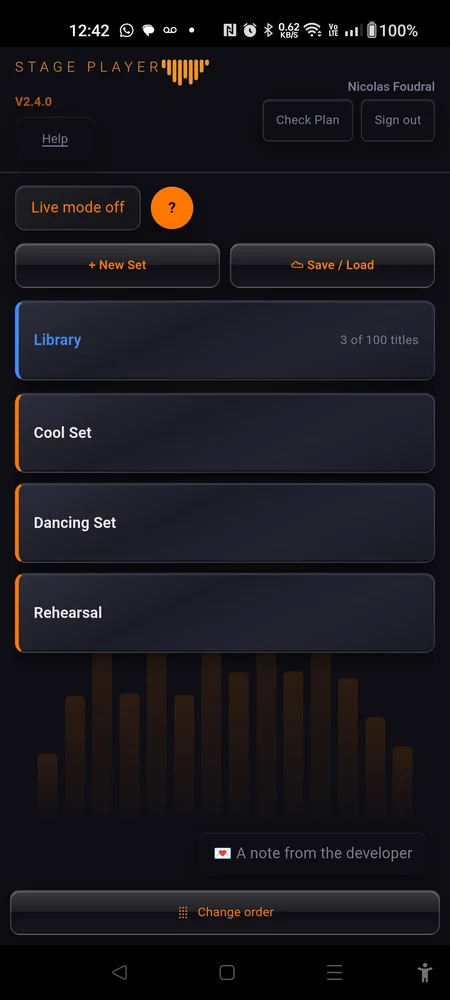
Below the list is “Change order”. Tap it and you get the same list with drag handles: hold a row, drag it, let go. The order you leave it in is the order you will walk through with the arrows on stage. Put the sets in playing order now, rather than hunting for the right one under the lights.
“Change order” only appears once you have more than one set. With a single set there is nothing to order.
Two sets with the same name are listed with the date and time each was last changed after it, so you can tell them apart. Inside a set, the title at the top is always the bare name you typed.
Making a new set
- Tap ”+ New Set” on the home screen.
- The dialog “Add new Set ?” opens. Type into the “Name” field.
- Tap “Add”.
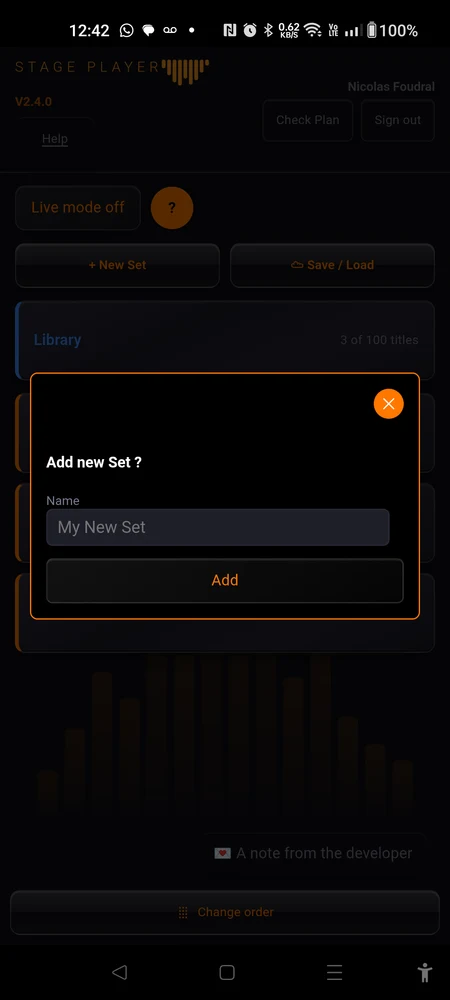
Leave the name blank and the set is called “My New Set”. That is fine for five minutes and a nuisance by the third one, so type the real name.
The new set arrives with 12 empty slots. Nothing is in them yet. They are pads waiting for a file.
Renaming a set
Open the set and tap “Edit mode off”. The title at the top becomes a text field. Type the new name and tap away from the field. It saves itself.
Tap the same button, now reading “Edit mode on”, to leave Edit mode.
In live mode the edit button is not there at all. Nothing about the set can be changed by accident with a room watching.
How many pads
In Edit mode there is a row of four buttons: 6, 9, 12, 15. That is how many pads the grid shows, and the active one is highlighted.
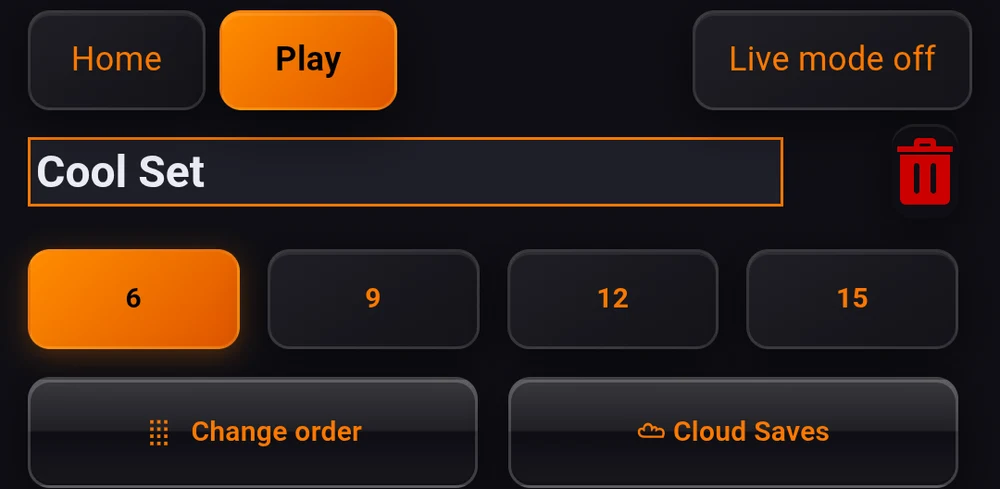
The pads always fill the screen, so fewer pads means bigger pads. The shape is fixed per size, and it is not the same in both orientations:
| Pads | Portrait | Landscape |
|---|---|---|
| 6 | 2 across, 3 down | 2 across, 3 down |
| 9 | 3 across, 3 down | 3 across, 3 down |
| 12 | 3 across, 4 down | 4 across, 3 down |
| 15 | 3 across, 5 down | 5 across, 3 down |
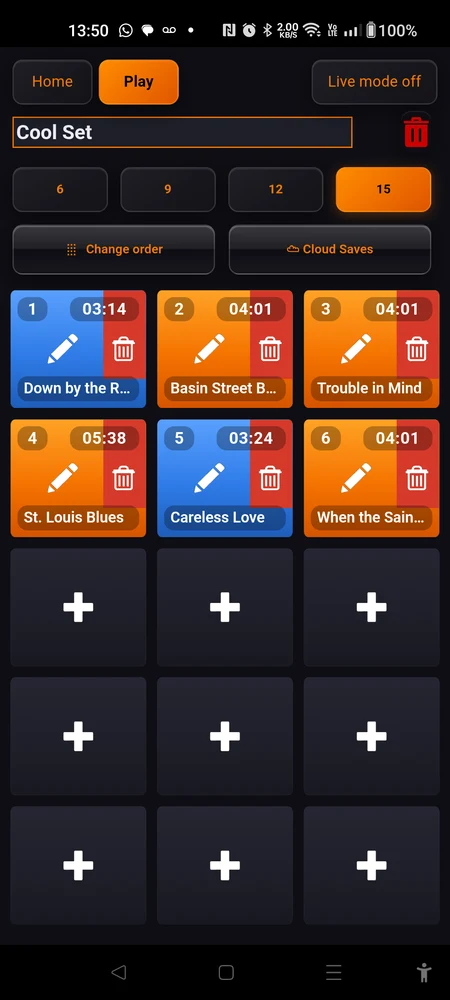
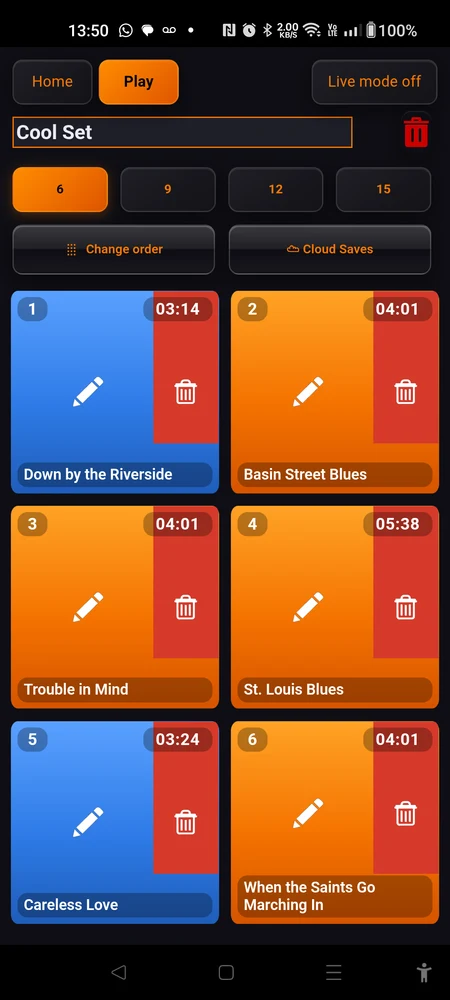
Six is worth considering for a theatre cue list you have to hit in the dark. Fifteen suits a long covers set where you would rather scroll nothing.
Shrinking a set never deletes anything. Going from 15 down to 6 hides the extra pads. It does not touch the songs on them. Grow the set again and they come back exactly as they were, with their files, their trims and their settings.
Ordering the songs inside a set
Tap “Edit”, then “Change order”. You get the set as a vertical list, one row per slot, with a handle on each. Hold a row, drag it up or down, let go. It saves itself.
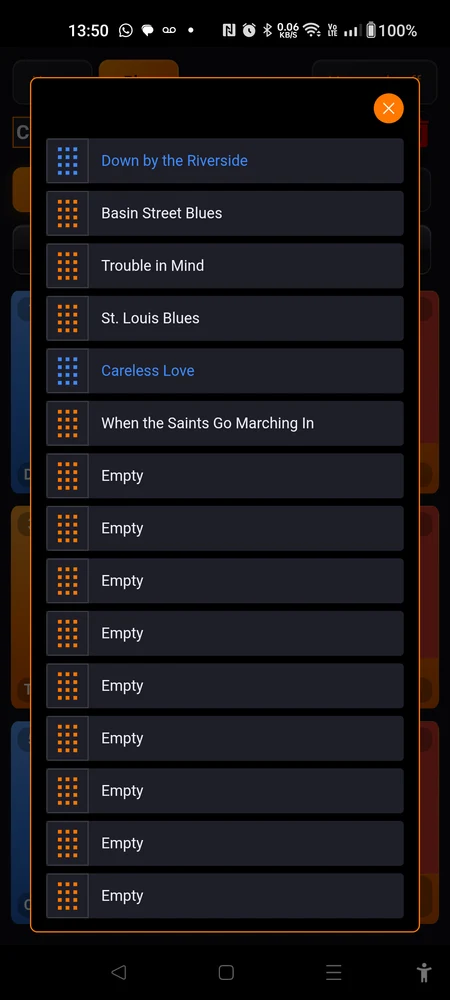
A slot with no file in it reads “Empty”. Those rows drag like any other, which is how you push a gap to the end of the show instead of leaving a hole in the middle of it.
The list holds every slot the set has, including any currently hidden by a smaller grid size. With the grid at 6 you may well see more rows here than pads on screen.
An empty set
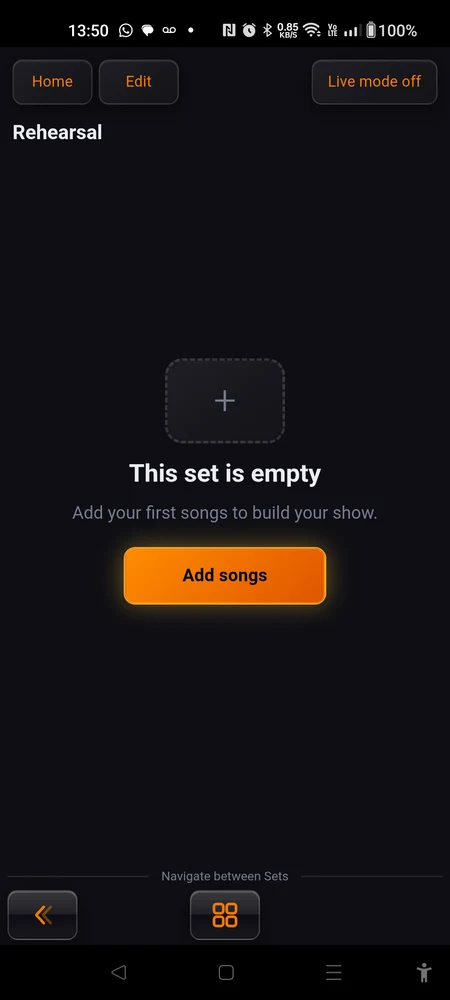
A brand new set does not show you twelve blank pads. It shows one card:
This set is empty Add your first songs to build your show.
Under it sits a button, “Add songs”, which puts you into Edit mode with the pads ready to fill.
Filling a pad is the Pads page. Short version: tap an empty pad, choose a file, give it a name.
Deleting a set
In Edit mode there is a bin button. It sits beside the name in portrait, and up in the top row in landscape. Tap it and a dialog asks “Delete Act one?”, using your set’s name, and offers “Cancel” and “Delete”.
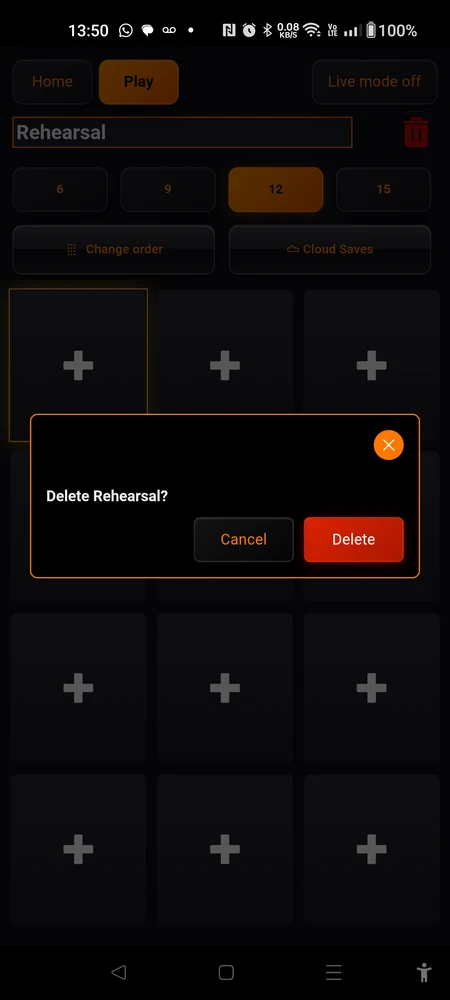
Be clear about what “Delete” takes with it:
- Every song in the set, including the ones hidden by a smaller grid size.
- The audio files nothing else was using. A file that a song in another set also plays, or one held by a title in your Library, stays on the phone.
- The trims, fades, count-ins, lyrics, scores and chains belonging to those songs.
There is no undo. If the set is backed up to the cloud the backup survives and you can restore it, and that is the only way back.
The app will not delete your last remaining set. Tap “Delete” on it and you are simply returned to the home screen with the set still there. If you want a clean start, make the new set first, then delete the old one.
Playing from a set
Out of Edit mode, the set is just pads. Tap one and it plays. What a tap does exactly (pause instead of restart, a count-in first, the next song following on) is set up per pad and covered in Pads.
Three things around the grid are worth knowing.
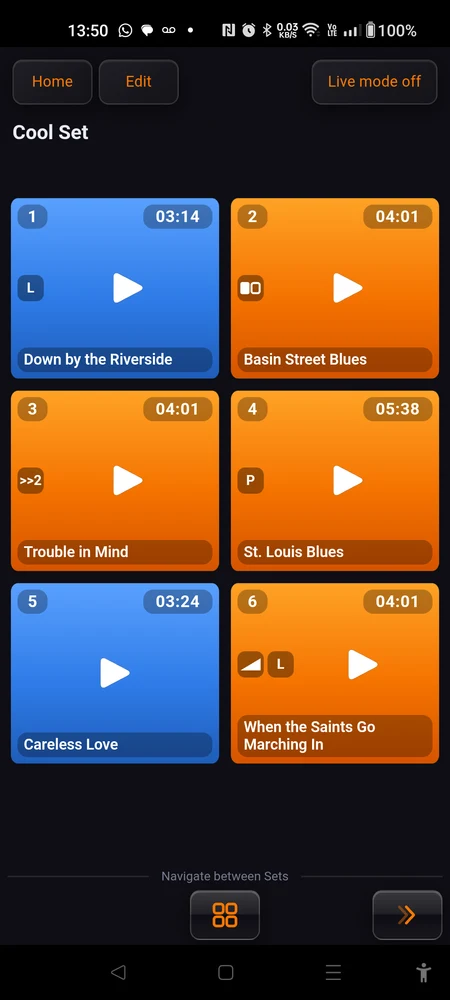
The “Now playing” line. Under the set title, a line shows the name of the music track currently playing. It scrolls if the name is long. Sound effects do not take it over. It stays on the music, which is the one you care about.
“Stop all”. As soon as anything is playing, a “Stop all” button appears in the header. It cuts everything, music and effects together. One tap, one silence.
The seek bar. Under the grid, or in the sidebar in landscape, there is a slider with time marks. Drag it to move inside the playing track. It appears for tracks longer than about twenty seconds, so short cues do not get one. It is also hidden in live mode: there is no version of a gig where you want to nudge a backing track by accident.
Moving between sets
At the foot of the set, or in the sidebar in landscape, there is a row headed “Navigate between Sets”:
- a chevron on the left for the “Previous set”
- a four-square button in the middle, “All sets”, which opens the full list so you can jump straight to any of them
- a chevron on the right for the “Next set”
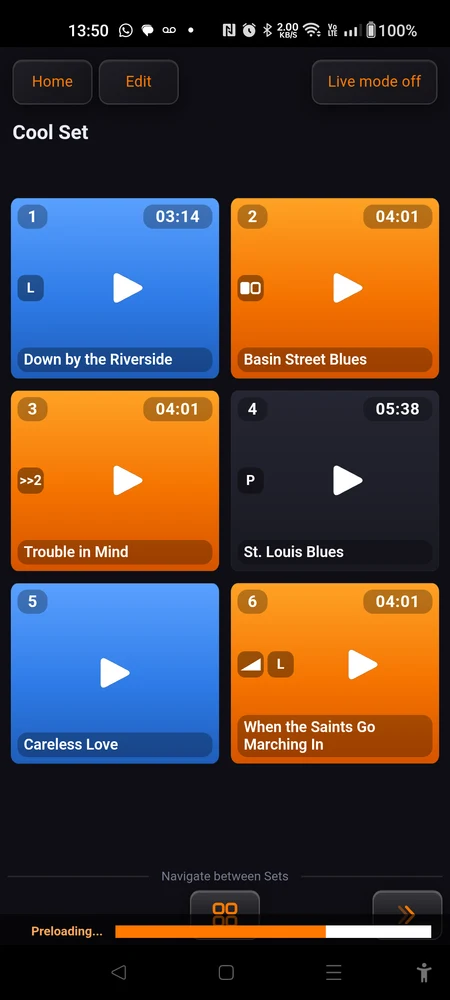
Previous and next follow the order you set with “Change order” on the home screen. The arrows only show when there is somewhere to go, and the whole row only appears once you have more than one set. It stays visible in live mode, because moving between sets is a stage job and not an editing one.
There is also the case where you do nothing at all. If a song is chained to a pad in another set, the app follows the chain and opens that set by itself when playback gets there. You end an act on the last pad of “Act one” and find yourself looking at “Act two”, with the right song already running.
Landscape
Turn the phone and the app does not stretch the same layout sideways. It rearranges: the title, the mode switch, the seek bar and the navigation move into a sidebar down the left, and the pads take the whole rest of the screen.
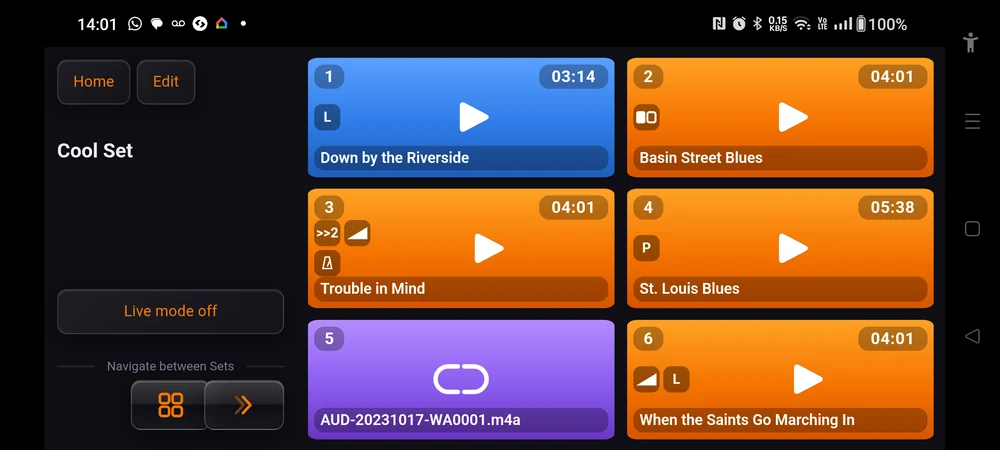
Both orientations work everywhere in the app, so use whichever fits how the phone is clamped. What matters is that for a given orientation the grid shape is identical in play mode, in Edit mode and in live mode. The pad in the bottom right at rehearsal is the pad in the bottom right on stage.
This set’s own cloud backup
Also in Edit mode, next to “Change order”, is ”☁ Cloud Saves”. It opens a view for this set alone: whether the cloud copy is up to date, older than what is on the phone, or not there at all. It also lists the older backups you have kept, ready to restore. It needs a connection and an account, and it says so plainly if you are offline.
Cloud backups has the whole picture: what a save actually contains, how much room a plan gives you, and how to get a show back onto a new phone.
Why a score is instantly there
Something the app does quietly, worth knowing because it explains one habit.
While a set is open and nothing is playing, the app works in the background on the heavy parts of every song in it: rasterising the pages of attached scores, and building the mix for songs that play two sources at once. It does this a page at a time, handing the screen back between each one.
The moment a song starts, all of it stops.
That is deliberate. Rendering a page or decoding two files takes real time, and doing either while a count-in is running would shift the clicks. So the work happens in the gaps between songs, and by the time you tap the pad the score is already drawn and the mix already built. It appears instantly because it was made while you were talking to the room.
The only thing it asks of you: give a freshly restored set a moment on screen before the doors open, rather than opening it for the first time thirty seconds before you go on.
Where to go next
Pads covers everything a single pad can do: files, trims, volume, count-ins, fades, chains, lyrics and scores.
Good habits is about how people who gig with this app every week organise several sets, name them, and check them before they leave the house.