The same recording turns up in more than one set. A song you play with two line-ups. A cover that comes back in three lists. A bed you use everywhere.
Without the library, every pad keeps its own copy of the settings. Trim the intro in one set and the other sets still start on the silence. Fix the mix in one and nothing tells you the other copies have drifted. You do the same work three times, and you hope you did it the same way each time.
The library is the other answer. The recording lives in one place, and every set that wants it points at it. Change its bounds, its mix or its score once, and every set follows.
Where it lives
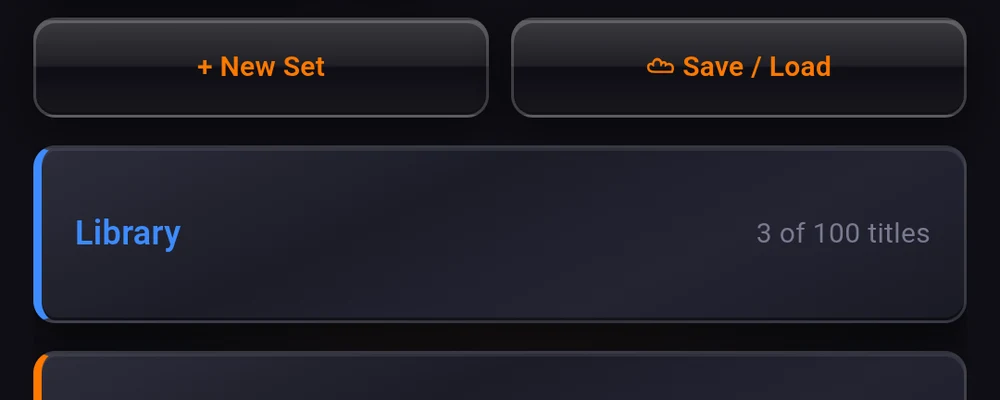
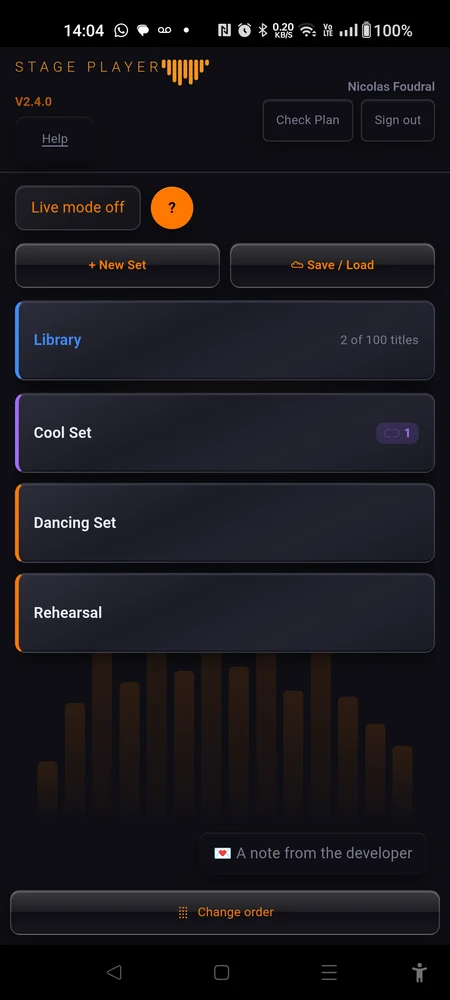
On the home screen, above your sets, there is a blue “Library” card. It shows how many titles you have and how many your plan allows, like “12 of 15 titles”. Tap it.
It needs no account. The titles live on the phone, like everything else the app plays. Signing in only matters when you want them backed up.
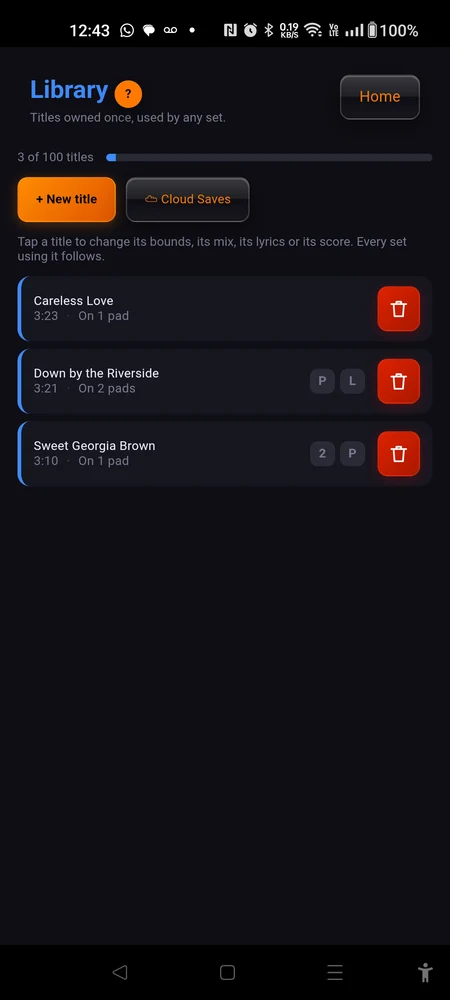
The page lists your titles, most recent first, each with its length and how many pads use it: “On 3 pads”, or “Not on any pad” when no set has picked it up yet. A small 2, P or L on a row means that title has a second source, a score or lyrics. Tap a row to open its settings. The bin on the right removes it.
Putting a title in
Two ways in.
”+ New title” on the library page asks for an audio file, imports it, and opens its settings straight away so you can name it, trim it, add the lyrics. No set is involved. A title can sit in the library unused for as long as you like.
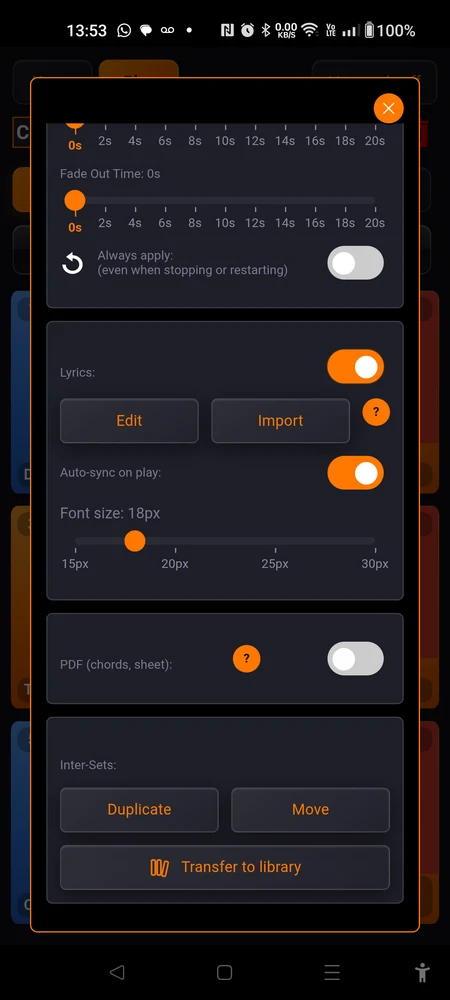
The other way starts from a pad you have already set up. Open its settings and, on the “Inter-Sets:” card at the foot of the page, tap “Transfer to library”.
That is a move, not a reset. The recording, its bounds, its mix, its lyrics and its score go into the library, where any set can use them. The pad keeps its type, its level, its count-in and its chaining, and goes on playing exactly as it did a minute ago. The audio itself is not copied: the title points at the same file the pad was using.
Two things to know before you tap. The button is only there while your plan has room for another title. And the pad cannot be turned back into its own private copy afterwards. If one set later needs its own version, that is what a deep copy is for.
Using a title in a set
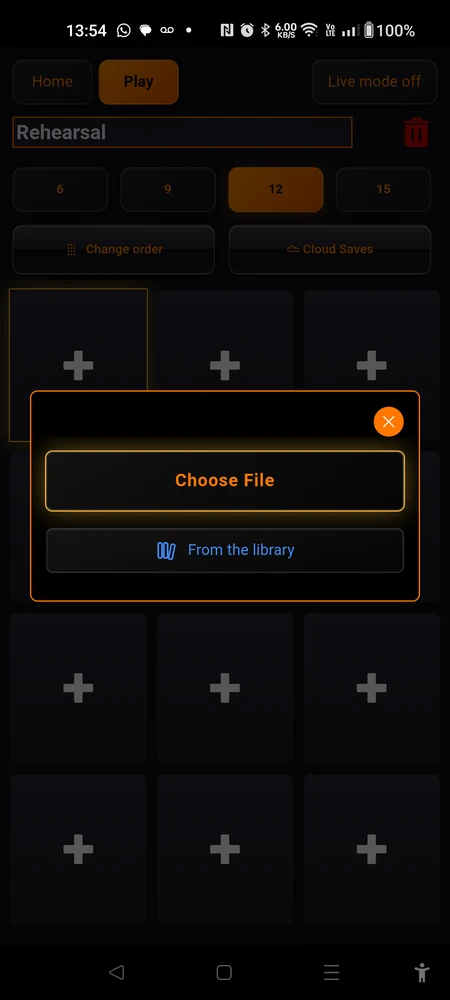
Open an empty pad. Beside “Choose File” there is a second button, “From the library”. Tap it, pick a title, and the pad plays it.
Only an empty pad offers it. A pad is either its own file or a library title, and that is decided once, when you fill it. There is no switch to flip afterwards, because flipping it would mean deciding, every single time, what becomes of the settings on the side you abandon.
What is shared and what is not
The title carries the recording. The pad carries the performance.
| Setting | Belongs to |
|---|---|
| The audio file and the name | the title |
| A second source and its whole mix | the title |
| ”Audio Boundaries:”, where it starts and ends | the title |
| ”Fade in/out:“ | the title |
| ”Tempo:“ | the title |
| ”Lyrics:“ | the title |
| ”PDF (chords, sheet):”, its crop, rotation and page-turn markers | the title |
| ”Type:”, “Music” or “Sound Fx” | the pad |
| The level, for this set only | the pad |
| ”Pre count:”, and its audio and visual click | the pad |
| ”Chained play:“ | the pad |
| ”On stop:”, what a second tap does | the pad |
The level is worth a sentence of its own. On a library pad the slider is labelled “Level (this set only): 100%” rather than “Volume: 100%”. It is an override, so the same title can sit at 80% in the club set and at 120% in the acoustic one. To change what every set hears, open the title from the library page and set its level there.
A title with two sources has no per-set level at all. Its two levels live inside the mix, and the mix belongs to the recording. See Two sources in one pad for what that card does.
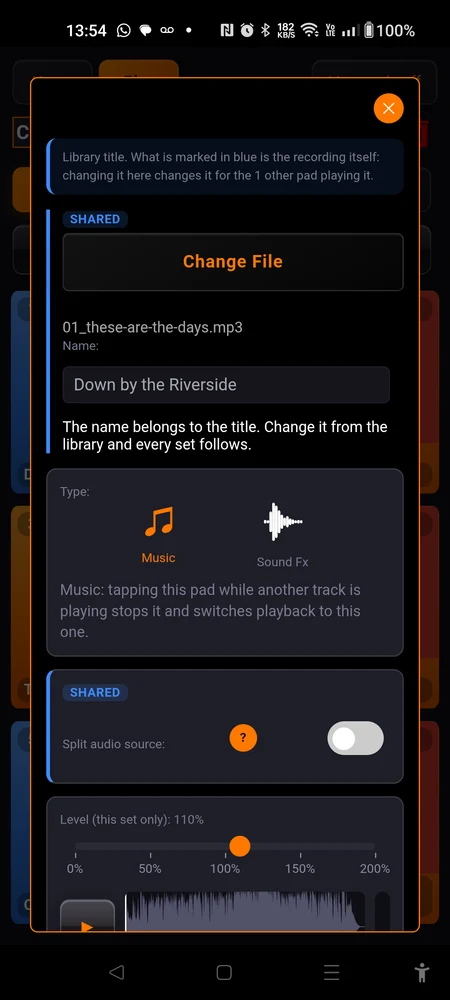
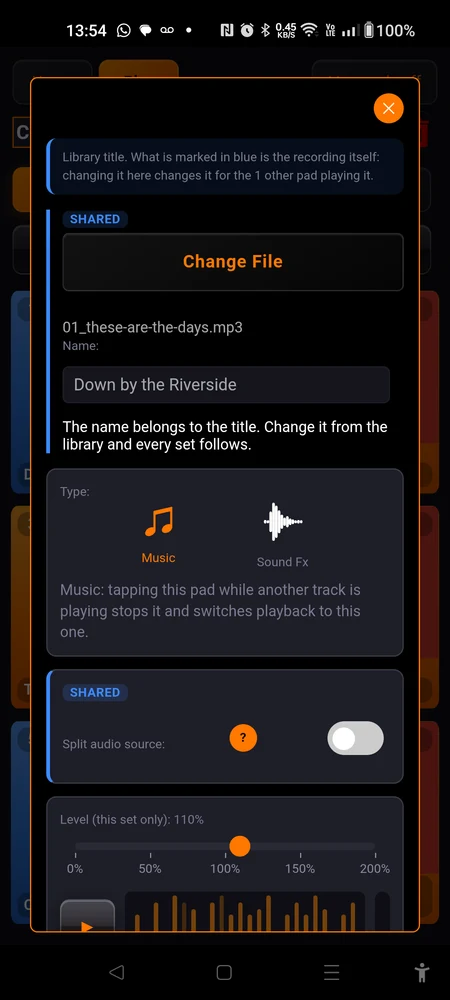
Editing a shared setting from inside a set
You do not have to go to the library page. Open the pad where it sits, in its set, and change what you need.
The page tells you what you are touching: every card that belongs to the recording is tinted blue. Open one, and its window says it in words, under a line counting how many other pads follow: “Library title. What is marked in blue is the recording itself: changing it here changes it for the 2 other pads playing it.”
The tempo is shared too, and it carries no mark. It sits inside “Pre count:”, a card that otherwise belongs to the pad, so changing the tempo in one set changes the count-in tempo of every set playing that title. It is also the one shared setting you cannot reach from the library page, since the count-in only appears on a pad.
Opening a title from the library page gives you a shorter version of the same page: only the cards that belong to the recording. Nothing is tinted blue there, because everything would be, and each window opens under a banner reading “Library title. These settings apply to the 3 pads playing it, in every set.”
The colours
Readable from the other side of a stage, with nothing to read:
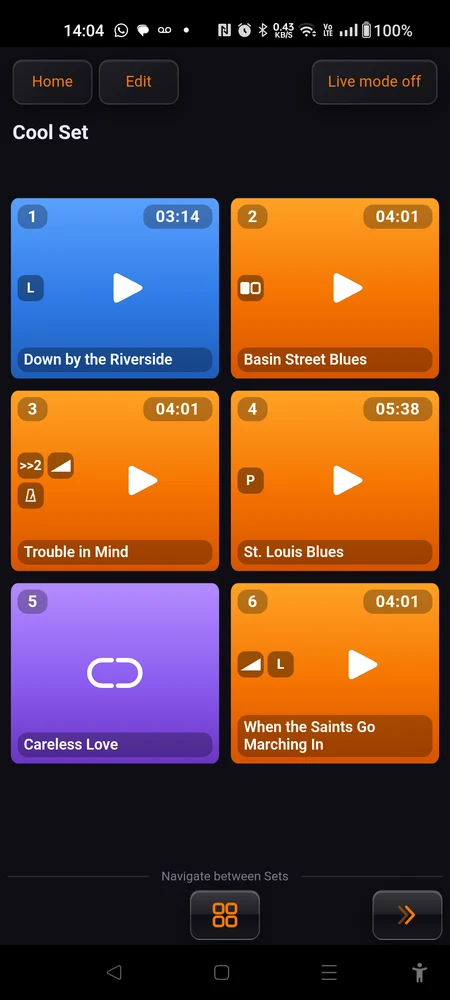
- Orange: the pad owns its file.
- Blue: the pad plays a library title.
- Purple, with a broken link: the pad points at a title that is no longer in the library.
The red of a pad that is playing stays red, whichever of the three it is. What is sounding right now is never ambiguous.
Removing a title that sets are using
You are allowed to, and the app tells you the price first. The confirmation counts the pads that play it and says what will become of them.
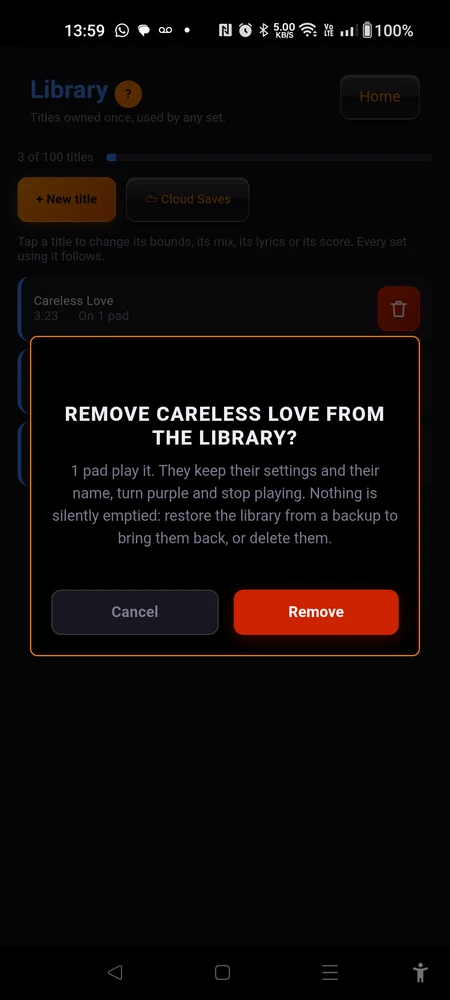
They are not emptied. Each one keeps its settings and the last name it knew for that title, so you can see which recording went missing. They turn purple, show a broken link, and will not play. Tapping one opens its settings; open any card and the window says “This title is no longer in the library.”
The home screen marks the sets that are affected: the set card turns purple and carries a broken link with a count. You find out at home, not on stage.
Two ways out, and neither is pointing that pad at another title. That does not exist yet, whatever the confirmation text suggests. Either restore the library from a cloud backup, which brings the title back and puts those pads to work again, or delete the pad and build it again from the title you want. Removing a title also deletes its audio from the phone, so unless you still have the original file to hand, a backup is the only way back.
When one set really needs its own version
Sometimes one set wants that recording trimmed differently and the others must not follow. “Deep copy to a set”, at the bottom of a library pad’s settings, is the deliberate way to break the link. Pick a set and a slot, and you get an independent copy that keeps what it was given and follows nothing from then on. It is an orange pad like any other.
It does not touch the pad you started from, and it does not free a library slot.
Note the difference with “Duplicate” next to it. Duplicating a library pad gives you another pad playing the same title, which costs nothing and stays in step with the rest. Only the deep copy cuts the cord.
How many titles you get
| Plan | Titles |
|---|---|
| Free | 15 |
| ”Starter - 3 credits” | 30 |
| ”Pro - 10 credits” | 100 |
| ”Expert - 30 credits” | 500 |
Sitting exactly at the limit is a normal state and blocks nothing except adding one more title.
If you end up above it, after a plan lapses or a downgrade, nothing is deleted. Adding a title stops, and backing the library up stops. Everything already in there keeps playing, in every set that uses it. The page says how many titles over you are, and both stops lift by themselves once you are back under.
Backing it up
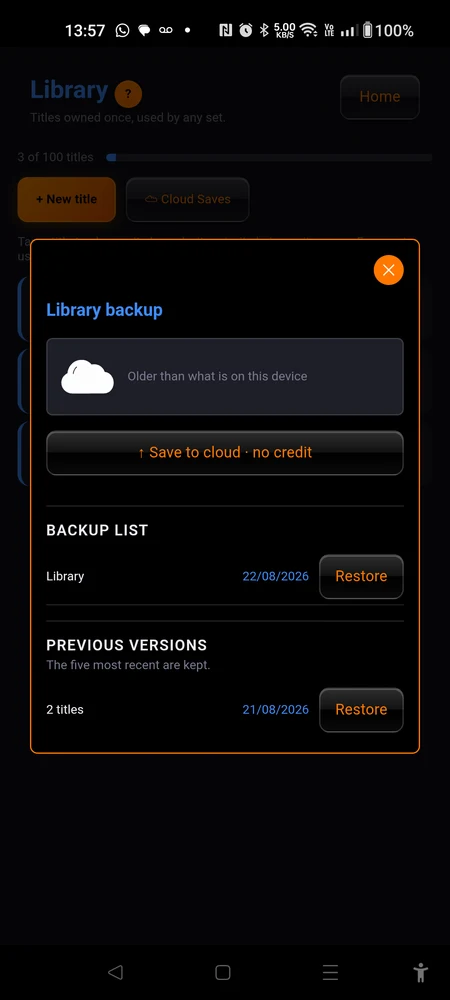
”☁ Cloud Saves” on the library page, once you are signed in. It is the same dialog a set uses: the status, one button to save, and the list of what you can restore. The library keeps its five most recent versions and costs no credit. It also has its own zone on the ”☁ Save / Load” page, above the sets and outside their list.
The library needs its own backup, and this one is not optional. A pad playing a library title holds no audio of its own, so backing up the set uploads no recording at all. Without a library backup, the audio, the bounds, the lyrics and the scores of every shared title exist on exactly one phone.
The rest of how backups behave, what a credit buys and how a restore goes, is in Cloud backups.
Where to go next
Preparing a pad covers every setting on that page, shared or not: the bounds, the fades, the count-in, the chaining.
Cloud backups is the one to read the same evening you start using the library, for the reason above.