You know the song. You mostly know the song. There is one verse you fumble every time, and a bridge whose chords you would rather not guess at in the dark.
A pad can carry either one for you. Turn it on, and when that pad plays the words or the score open by themselves and follow the music. You keep both hands on your instrument.
One pad, one document
In a pad’s settings there are two switches: “Lyrics:” and “PDF (chords, sheet):”, and a chart can be written as a third. Turning one on turns the others off: a pad shows words, or a score, or a grid, never two at once, because on stage there is one screen and one pair of eyes.
Flipping between them throws nothing away. Your lyrics stay saved, your PDF stays attached with its crop and its markers, your chart stays written. Only the choice of what to show changes.
This page is about the words. The other two have their own: PDF scores and chord charts.
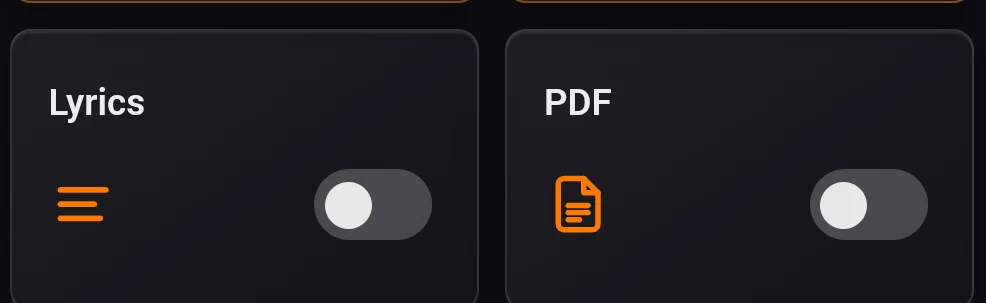
If the song comes from your shared library, the card is tinted blue and the window it opens carries a “Shared” badge. The words and the score belong to the title, so every set that uses it gets them, and every set follows when you change them.
Text lyrics
Turning it on
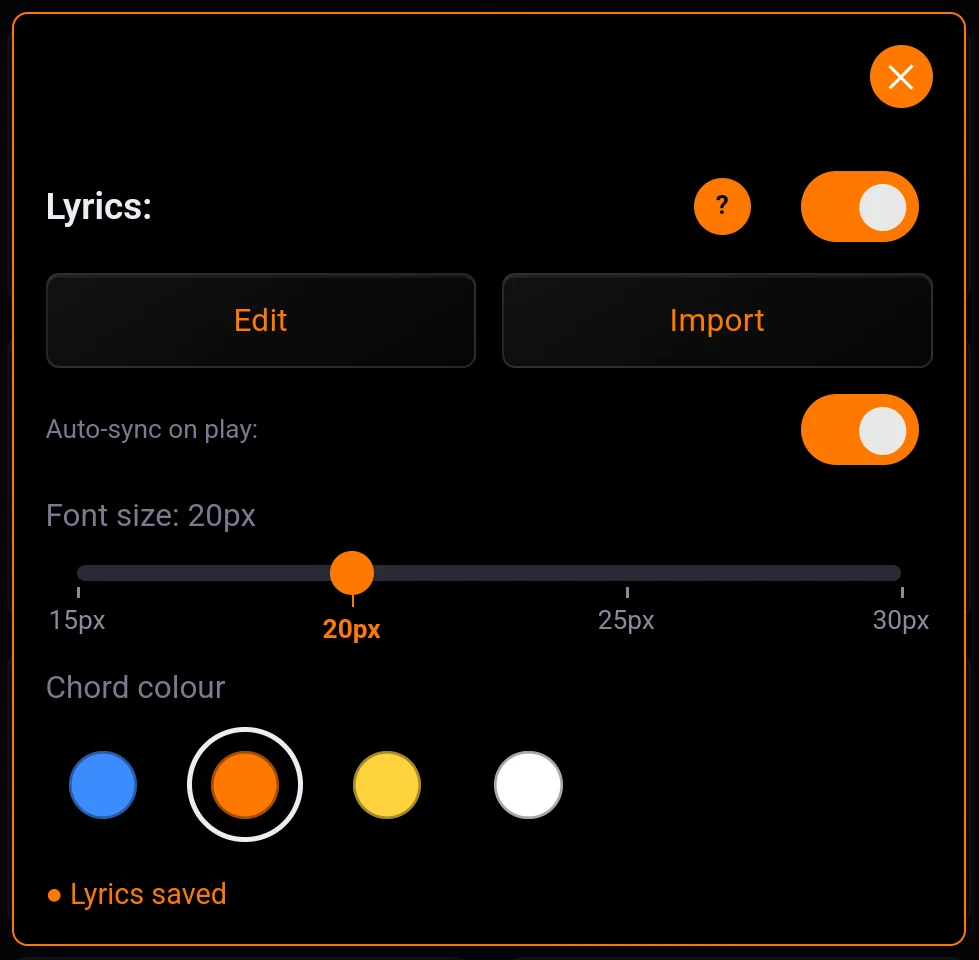
Tap the “Lyrics:” card and its window opens, switch on or off. The switch alone decides whether the words open on stage.
- “Edit” opens the editor. That is where you type, and where you place the marks.
- “Import” takes a
.txtor.mdfile you already have on the phone. It replaces whatever was there, so import first and edit afterwards. - ”?” is a short reminder of the same thing.
Below them, “Auto-sync on play:” decides whether the stage view starts following the song on its own or waits for you to switch it on. “Font size: {n}px” sets how big the words are on stage, anywhere from 15 to 30 px. Once there is text saved, ”● Lyrics saved” appears at the bottom of the panel.
The editor
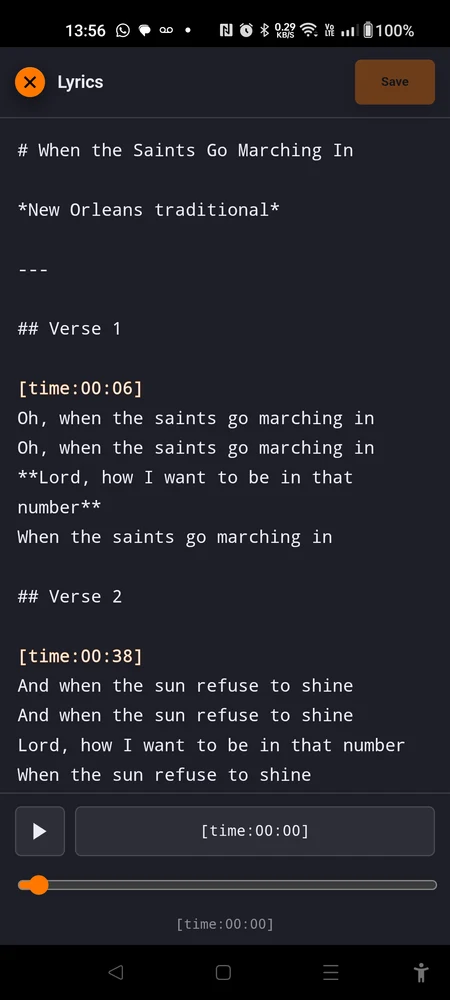
The middle of the screen is a plain text area. Type, paste, or import. Nothing else is required: text with no markup and no marks already works on stage.
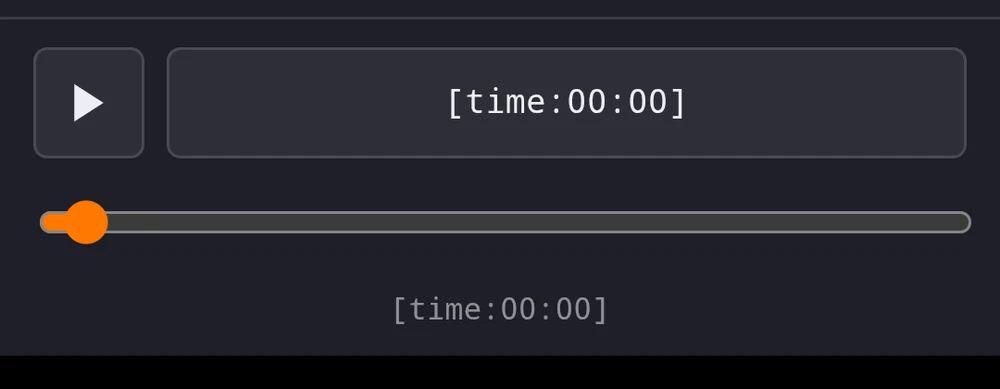
At the bottom (in landscape, in a column on the left) there is a play button, a button showing a running time, and a slider to move around the track. The editor plays the song itself so you can place your marks against what you hear.
An orange dot next to “Lyrics” means you have unsaved changes. “Save” keeps them. Closing with the dot still there asks first: “Unsaved changes”, then “Cancel” or “Discard”.
Placing a mark
Put the cursor where you want the mark, usually at the start of a line. Tap play, listen, and when the song reaches that line tap the button showing the running time. It writes the time into your text, right at the cursor, and leaves the cursor after it.
So the button that reads [time:00:41] is not a label. It is the mark it is about to
insert.
The comfortable way to work: type all the words at home, then play the track once and place a mark at the top of each section as it arrives. Miss one and drag the slider back a few seconds.
What a mark looks like
A mark is [time:MM:SS]. Two digits, a colon, two digits. The editor paints real
marks orange, so a mark that stays white is not a mark.
[time:1:30]is not recognised. It is ordinary text, and it will sit there on stage in the middle of your lyrics, in front of an audience. Write[time:01:30].
Real marks are invisible on stage. They take no space and print nothing.
Marks must go forward. Two marks at the same time count as wrong too, because they tell the app to be in two places at one instant. When the order is broken you get ”⚠ Non-incremental timestamps:” with the offending pair named, and “Save” stays out of reach until you fix it.
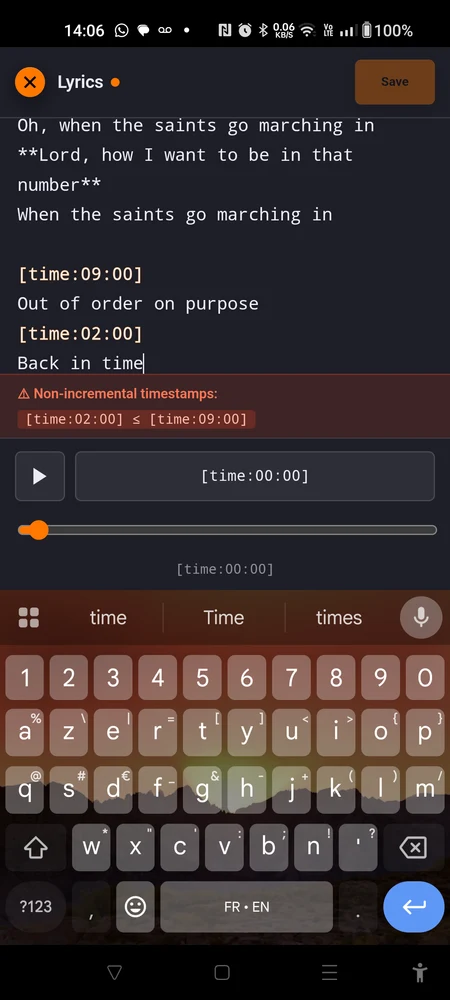
Times are counted from the moment the song starts playing, not from the start of the file. If the pad trims its intro,
[time:00:00]is the trimmed start. Move those bounds later and every mark shifts by the same amount.
How the scrolling actually works
This is the part nobody guesses, and it changes how many marks you bother to place.
With no marks at all, the whole text scrolls evenly from the top to the bottom over the length of the song. Type your lyrics, save, and it already works. On a song whose words are spread fairly evenly, that alone can be enough.
A mark is an anchor. It pins one line to one moment. Between two marks the text moves smoothly so that the line you are on sits in the middle of the screen when its moment arrives.
Which is why you mark section starts, not lines. A mark at the top of each verse and each chorus is four or five marks for a whole song, and everything in between takes care of itself. Marking every line is work you do not need to do, and it makes the scroll twitchy.
Before the first mark, the text eases gently from the top down towards it.
After the last mark, the text stops moving. Put a mark on your last section, or the words sit still from the final mark to the end of the song.
On stage
The view opens by itself when the song starts. It waits for the count-in to finish, so it never covers the visual countdown.
Across the top: an “Auto-sync” switch, the time remaining counting down, a red stop button and the round close button.
- Stop stops the song and closes the view.
- Close leaves the song playing. If you want the words back, a button appears next to the set’s name: “Lyrics” in portrait, “Display Lyrics” in landscape.
- When the song stops on its own, the view closes on its own.
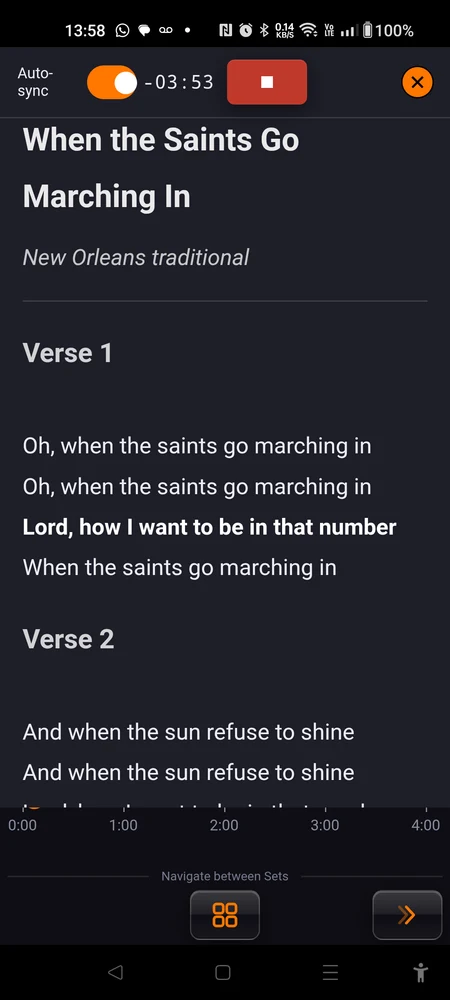
Drag the text with your finger and you take over. Auto-sync switches itself off and the text stays exactly where you put it, which is what you want when you need to check the last chorus while the second verse is playing.
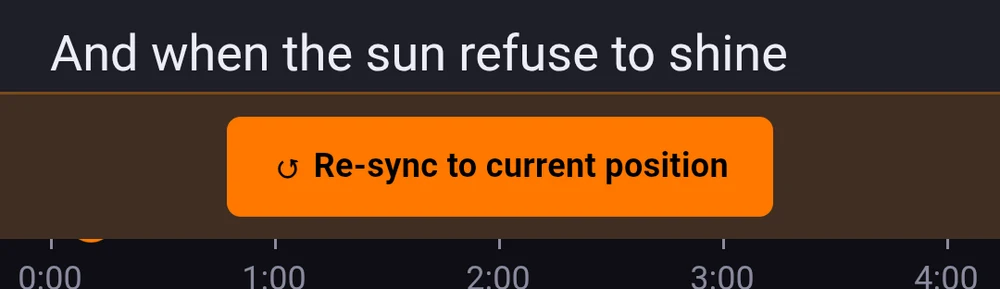
”↺ Re-sync to current position” appears at the bottom. Tap it and the view jumps back to where the song actually is and starts following again. The “Auto-sync” switch does the same job.
In live mode the view is the whole screen. Out of live mode it stops short of the app’s own controls, leaving the bottom strip visible in portrait and the left column in landscape, so you can still reach the rest of the set.
Markdown, only if you want it
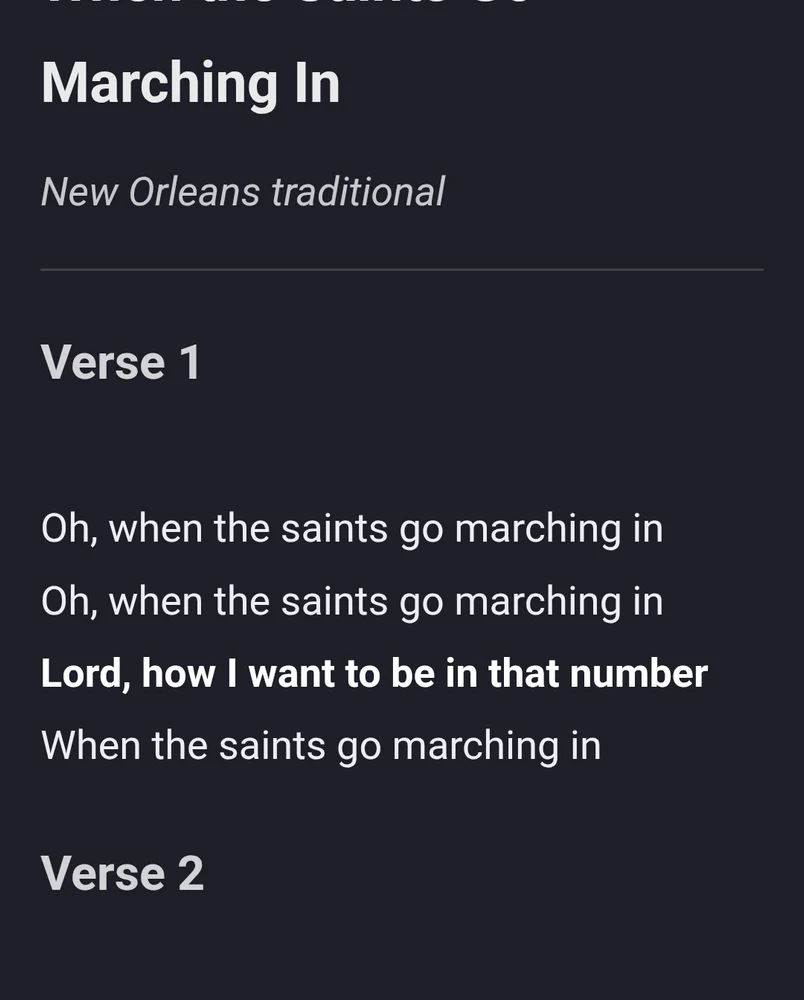
Plain text works perfectly well. Type the words, save, done. Your line breaks are kept exactly as you typed them, so a verse looks like a verse without any tricks.
Markdown is just a habit of typing one or two punctuation marks to mean “this is a heading” or “make this bold”. It was invented so that a note stays readable whether or not anything is dressing it up. If you have never used it, here is the whole of what the stage view understands.
| What you type | What you get |
|---|---|
# Long Way Home | the biggest heading |
## Chorus | a medium heading |
### capo 2 | a small heading |
**big finish** | bold |
*quietly* | italic |
- watch the drummer | a bullet point |
1. first time only | a numbered point |
--- | a horizontal line across the page |
> wait for the nod | a quote, shown with an orange bar down its left side |
That last one is worth knowing. The orange bar makes a line jump out of a page of lyrics, which makes it the right place for a note to yourself rather than something you sing.
Only what is in that table is styled for the stage. Tables, links and pictures are not, so do not build a page around them.
If a line comes out looking odd, it is almost always a
#,-or*at the start of the line doing its job. Reword the line and it goes back to normal.
One song, put together
# Long Way Home

[time:00:00]
> Guitar count of four. Come in on the second bar.

## Verse 1
[time:00:11]
I left the house before the sun came up
Nothing in my pockets but a folded map
Every road out here goes the same way twice

## Chorus
[time:00:48]
It's a long way home
**Harmony from here**
It's a long way home tonight

## Verse 2
[time:01:22]
Somebody told me there was work downriver
Somebody told me a lot of things

## Chorus
[time:02:04]
It's a long way home

---

*repeat and out*
Four marks, one per section. Everything between them moves by itself, the marks are invisible on stage, and the note about the guitar count sits behind an orange bar where you cannot miss it.
Chords over the words
Sometimes you do not need a chart. You need the words, and a chord name over the syllable where it changes, which is how most players have written songs down since long before any of this.
Open a pad’s lyrics and the editor has two tabs: Lyrics, where the text lives, and Chords, where the chords go on top of it. The text belongs to the Lyrics tab alone. You cannot type words on the Chords tab, and that is deliberate: a chord sits on a word, so the word has to exist first.
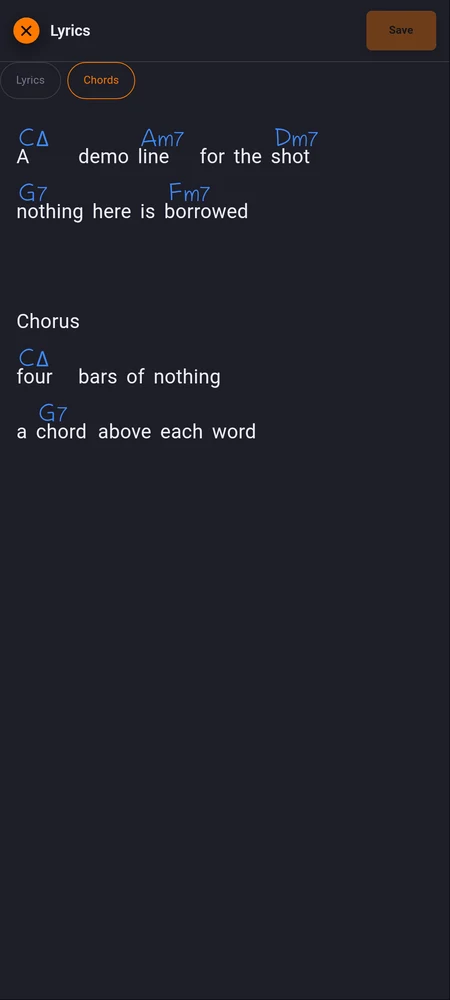
Two gestures, and that is the whole editor
Tap a word, and the chord picker opens. Root, then Basics, Colour or Extended, and ”+ slash bass” when the bass is not the root. Tap a word that already carries a chord and the picker opens on it; “Remove” takes it off and leaves the word alone.
Hold a word, and a panel opens showing that word letter by letter. This is where everything below happens.
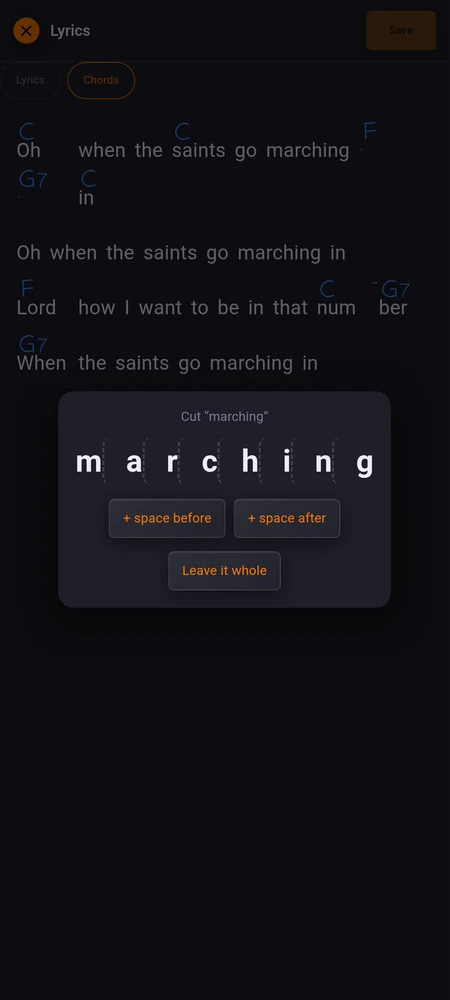
Nothing else. No drag, no menu, no mode to switch.
The problem this solves
A chord changes where it changes, and that is not always at the start of a word.
Two cases break the simple “one chord per word” rule, and both have an answer in that panel:
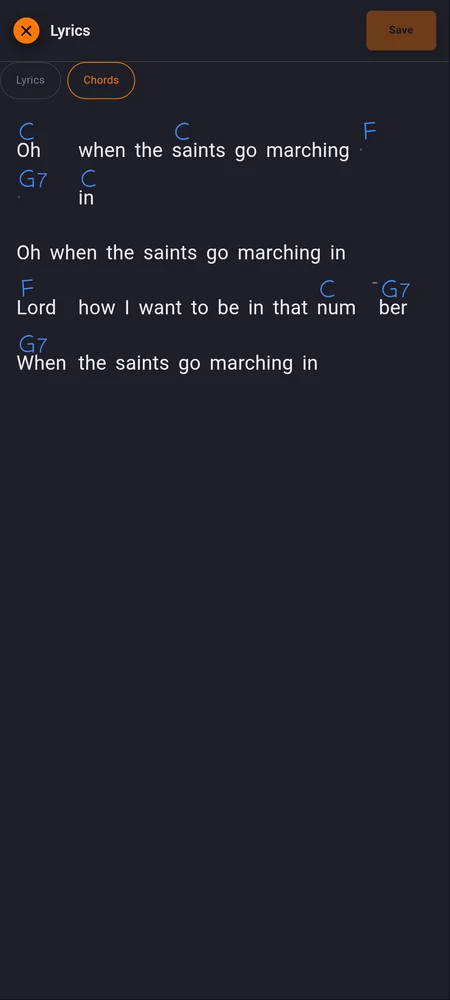
- the change falls inside a word, as in num-ber, with the new chord on the second syllable;
- the change falls between two words, or twice between them: a bar of vamping with three chords over it and only two words to hang them on.
A chord inside a word: cut it
Hold the word. The panel spaces its letters out, and each gap between two letters is a place you can tap: that is “Cut here”. Tap the gap and the word becomes two carriers, each of which takes its own chord like any other word.
The word itself is not changed. The text stays exactly as you typed it, and the sheet still reads number. Only the chord line above knows there are two places to hang something.
Hold either half again and “Join back” puts them together. A chord sitting on the half that disappears goes with it.
A chord between two words: add a space
Hold the word before or after the gap, then ”+ space before” or ”+ space after”. A carrier appears, a slot with no word of its own, shown as a small dot, and it takes a chord like anything else.
Need two? Hold the space itself: the panel changes and offers ”+ another space”. Do it again for a third. Each one is its own carrier, in the order you made them, so a bar with C, F and G7 over two words is three taps and no compromise.
“Remove this space”, on the same panel, takes one back. Its chord goes with it.
What happens when you edit the words afterwards
The chords hold on to positions in the text, so editing the text can move them.
Small corrections are safe: fixing a typo, changing a word, adding a line elsewhere. The chords follow. What cannot survive is deleting the thing a chord was sitting on. A word removed takes its chord with it, and a cut removed takes the half that no longer exists.
The rule of thumb is the honest one: write the words first, then hang the chords. Going back to fix a line is fine; rewriting a whole verse under finished chord work is not.
Reading it on stage
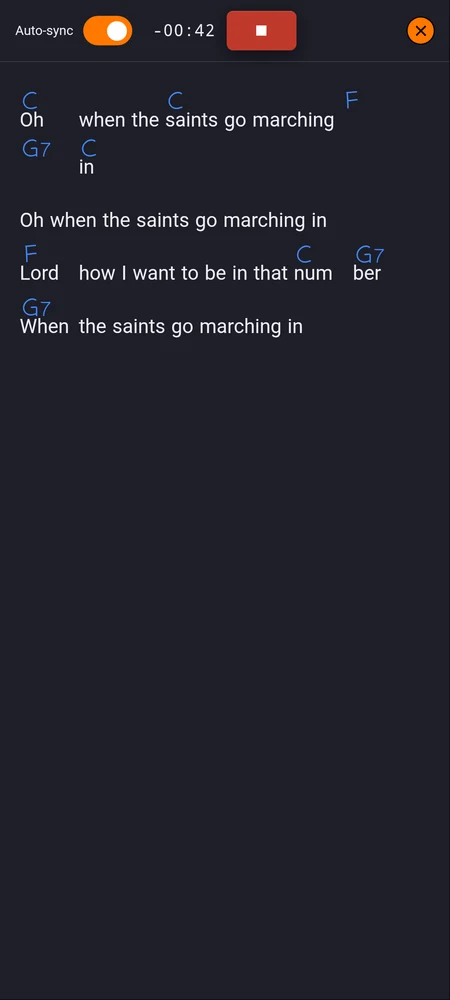
The sheet scrolls exactly as it did before, chords and all, following whatever marks you placed in the text. Nothing else to set up.
Colour and size are set on the song, beside the lyrics font size: blue, orange, yellow or white. Which one is right depends on your lights, not on taste: pick the one you can still read when the room goes red.
This is not a chart
No bars, no repeats, no count of passes: the chords sit on the words and that is all they do. When you need the grid itself, with the harmony read bar by bar, the repeats unfolded and the current bar lit as the track runs, that is chord charts, and the two can live on the same song.
Where to go next
- PDF scores for the chart you already have as a page.
- Chord charts for a grid the app can read, that scrolls by the line and unfolds its own repeats.
- Preparing a pad for everything else a pad carries.