A PDF is a picture of a chart. It turns its pages at the marks you placed, and that is all it can do, because the app cannot read what is inside it.
A chart written here is different. The app knows where every bar is, how long it lasts, and in what order the repeats send you. It follows the track from the first play with no marks at all, and it scrolls by the line rather than by the page.
If you already have a PDF, keep using it. This is for the songs where you would otherwise be squinting at a photo of a napkin.
Starting one
Two doors, and they land in the same place.
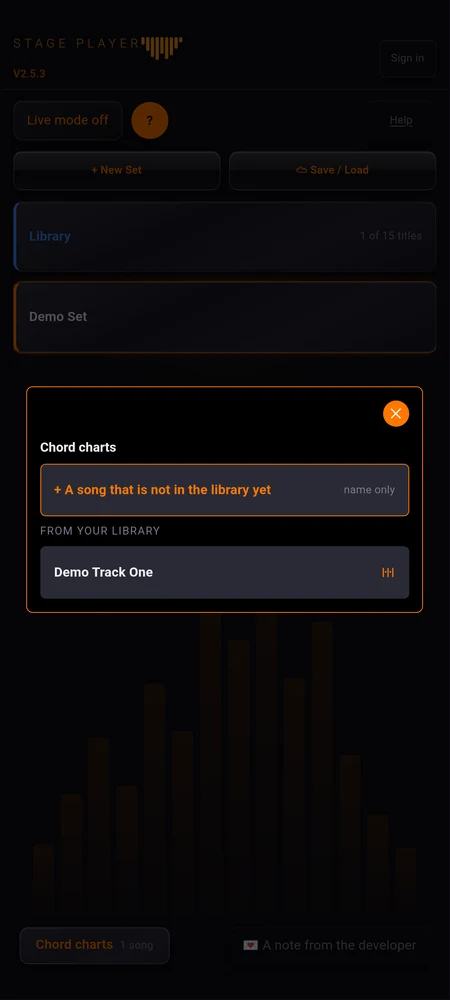
From the home screen, tap “Chord charts” at the bottom. Pick a song from your library, or tap ”+ Add a new song to your library” and give it a name. A song with no recording is normal here: you often write the chart before anyone has sent you the track.
From a pad you already have, open its settings, tap the “Chord chart:” card, then “Write a chart”.
Why a chart belongs in the library
Both doors above put the chart on a library title, and that is not an accident.
Writing a chart is an evening’s work. Where it lives decides how many times you will do that work again.
A library title is one song, read by every set that plays it. Write the chart once and it is there in the Tuesday trio, in the function band, in the dep gig you took last minute. Fix a wrong bar at the soundcheck and every set already has it, including the ones you will not open for a month.
A song outside the library cannot be shared at all. That is the part worth knowing before you start: to play it in a second set you have to duplicate it, and the copy has its own chart. Three sets, three charts, and a change made in one is a change missing from the other two. Nothing warns you when they drift, because from the app’s point of view they were never the same song.
The same is true for everything else the song carries: its bounds, its mix, its lyrics, its score. The library is what stops you owning a song three times.
The cheap move, if you are unsure. Write the chart wherever you are. When the song turns out to matter, open its settings and use “Transfer to library”: the chart goes with it, along with the words, the score and the bounds. Nothing is retyped.
Finding your way around
Four pages along the top (Chords, Lyrics, Mapping, Sync), and a row at the bottom that works from any of them: the gear, undo, redo, a ?, PDF, Cancel and Save.
The ? is worth a look before anything else. It shows the editor’s gestures, one small animation each: what a tap does, what a long press does, how a range gets selected. Everything below assumes you have them, and that page gives them to you in fifteen seconds.
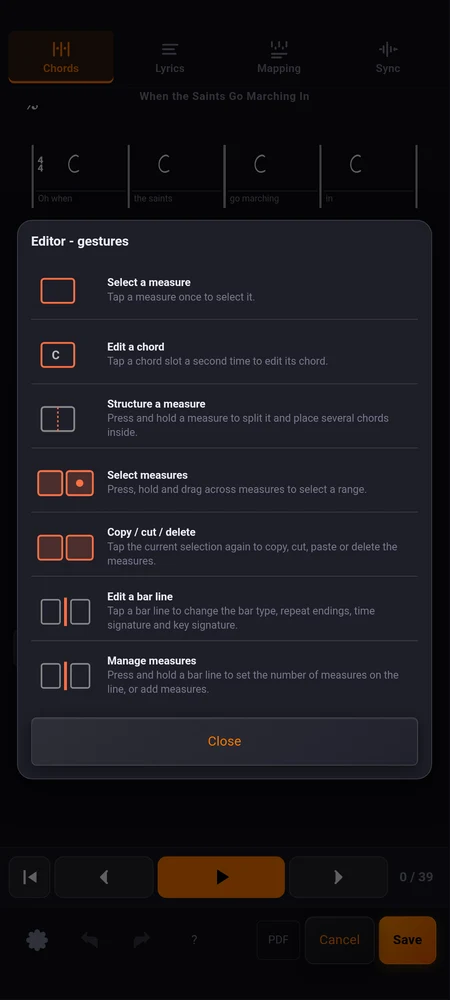
The rest of this page is the other half: not which finger, but how to get a particular thing written.
Writing a bar
A chord
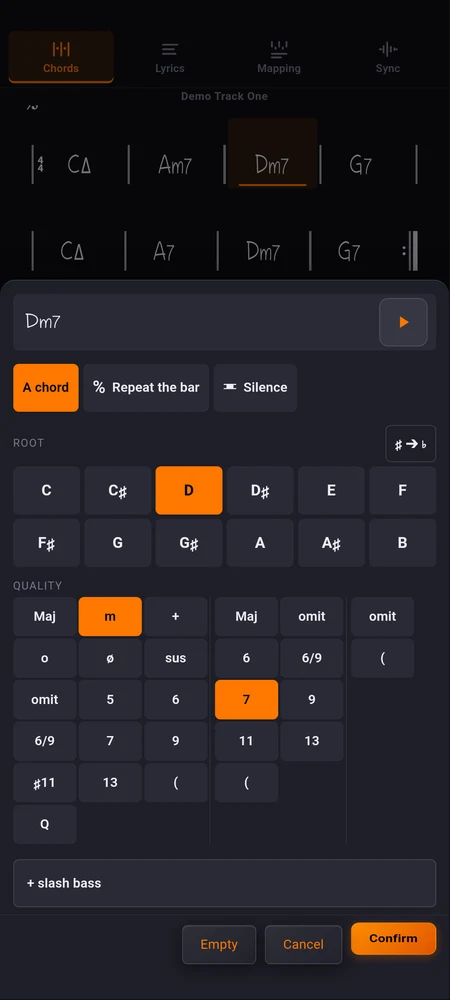
Tap a bar to put the cursor on it, tap again to open the picker.
Pick the Root, then the quality: Basics covers major, minor, seventh; Colour adds the sixths, ninths and suspensions; Extended and Altered go as far as the song does. ”+ slash bass” adds the bass note when it is not the root: C/E, and the bass player will thank you.
Two things in the picker are easy to miss. “Listen” plays the chord, which settles an argument about a voicing faster than reading it does. And ♯ ➔ ♭ respells what you just wrote, so a chart in D♭ does not end up half in C♯.
“Empty” clears the bar without deleting it.
A silence, or a bar that repeats the one before
Under “Or write instead”, a bar can hold something other than a chord:
- “Repeat the bar”, the ditto sign, for a harmony that sits still;
- “Silence”, for the bar where nobody plays.
Either can cover more than one bar: “Over” takes “One bar more” and “One bar fewer”, so four bars of vamp are one mark rather than four.
Several chords in one bar
Hold the bar. “Subdivide measure” splits it, and how many parts is up to you. “Chords in the bar”, on the bar’s own panel, does the same from the other direction.
Chords already written are kept by position, so subdividing a bar that holds one chord puts it on the first beat rather than losing it.
How wide a bar is
“Width of the bar”, on the same panel. A bar with four chords in it can take the room of two, and a bar holding a whole note can shrink.
This is where the chart obeys you completely: what you lay out is what gets drawn, and nothing reflows behind your back. The single exception is “Bars per line” in the chart settings, which rewrites the whole layout on purpose, and says so before it does it.
Adding, deleting and moving bars
One bar at a time
Tap the bar, then “This bar”: “Insert before”, “Insert after”, “Delete bar”. At the end of the chart, ”+ Line” adds four more and “Remove last line” takes them back.
Several at once
Hold a bar line and you get “Structure”: “Insert measures”, “Add before”, “Add after”, and “Measures on this line” for the line that needs five bars where the others have four.
Moving a passage
Hold a bar, then drag across the ones you want: that is a range. Tap the selection again and the “Selection” panel opens, with Copy, Cut, Erase, Delete, and once something is on the clipboard, Paste, Replace and “Insert after”.
Erase empties the bars and keeps them; Delete removes them and closes the gap. A bridge that belongs four bars later is a cut and a paste, not eight taps.
Repeats
Tap a bar line, not a bar. What you get describes that line:
- “Bar line”: plain, double, the repeat signs, the end of the chart;
- “Repeat ending”: Repeat opens a bracket, End closes the passage, Last marks the final time through;
- “Played on pass”: which times through this bracket is played;
- “Played how many times”: on a repeat sign, counting the first time through. A plain repeat sign means twice; anything else is printed ×N over the bar.
A bracket opens on the next bar and runs until an End, another bracket, or a repeat sign. There is no free text on a bracket, on purpose: a chart a stranger has to sight-read must be readable from its own notation.
Jumps
Under “Jumps”, on the same panel:
| sign | where it goes | what it does |
|---|---|---|
| Segno | on the bar that opens the measure | the place a D.S. comes back to |
| Coda | on the bar that opens the measure | the place a To coda jumps to |
| D.S. | on the bar that closes it | go back to the segno |
| D.C. | on the bar that closes it | go back to the first bar |
| To coda | on the bar that closes it | go forward to the coda |
One of each in a chart. Putting a segno somewhere else moves it rather than adding a second one, because “back to the sign” has to mean one place.
Repeats resolve first: a jump fires on the last pass over its bar. And a To coda waits until the D.S. or D.C. has been used, which is how “D.S. al Coda” is played. Taken the first time round, it would send you to the coda without ever reaching the D.S., and half the song would never be heard.
Coming back does not repeat again. On the way back from a D.S. or a D.C. the app plays the section straight through: the repeat signs and the brackets you already took are not taken a second time. That is what the page says to everyone else reading it, and a player that did otherwise would drift away from the rest of the band.
Keys, time signatures, and words on the chart
A change of key or of metre, mid-chart
Both live on the bar line, where the change actually happens: “Time signature” and “Key”. “Same as before” is the default, because a bar line that changes nothing should say nothing, and the new signature is printed from that bar on.
“Opening bar of the chart” sets the very first one. “Transpose”, in the chart settings, moves everything at once for the singer who needs it a tone down.
Text on a bar, and on a line
Two different things, deliberately:
- “Text above measure”: Intro, Chorus, x4, placed Left, Above bar or Right. It belongs to that bar and travels with it.
- “Line text”: Verse, Chorus, Bridge, written beside the whole line.
Use the line text for the form and the bar text for the instruction. A player reading over your shoulder finds the section on the left and the warning where it applies.
Words under the bars
Getting the words in
The Lyrics page is where the text goes, typed or imported from a text file. Just the words: the chart is not a lyrics sheet, and nothing here scrolls yet.
If what you want is the words with chord names over them and no grid at all, that is a different feature and an easier one. See chords over the words.
Putting them under the bars
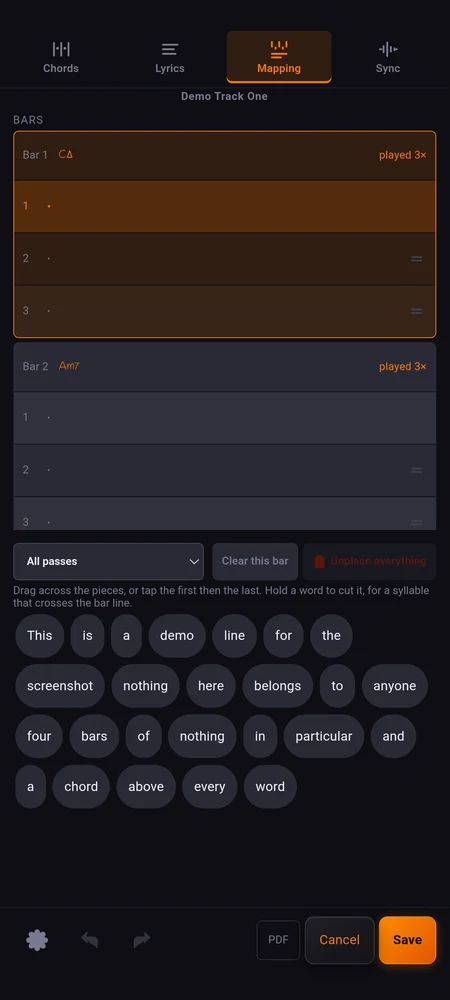
The Mapping page. Drag across the pieces of a line to drop them on the bars they are sung over, or tap the first piece and then the last.
Hold a word to cut it in two, for a syllable that crosses a bar line. “Join back” puts it together again.
Passes: the verse that changes one line
A chorus played three times shows three rows under its bars, one per pass, and each can carry its own words.
When they are the same, say so: “Same words as the line above” joins a pass to the one above it, and the index becomes a range: 1–3 rather than three identical rows. “Give each time through its own words” separates them again. A second verse that differs in one line only needs that one line typed twice.
Following the track
The Sync page, and the good news first: a chart knows its tempo and how many beats each bar holds, so it is already synchronised with no anchors at all. An anchor is a correction, not a requirement.
Tempo sits here, and it belongs to the chart. A new chart starts from the song’s tempo, and after that the two live apart: a chart anchored bar by bar to the recording must not be thrown off because someone nudged the tempo on the song card.
When you do want them to agree, the song card says so. Under the count-in, a button offers the chart’s tempo by name, and applies it when you tap it. Asking is the point: the app never moves one of the two behind your back.
When the recording drifts from the written tempo, play the track and tap ”+ Anchor this bar here” on the downbeat of the bar shown. Then:
- no anchor, and the declared tempo runs from the top;
- one anchor, and the same tempo runs from where you put it;
- two or more, and each stretch runs at the tempo its own pair implies.
One anchor on the first chord lines up a whole chart on a steady recording. A second absorbs an intro that drags. Anchors must advance, in time and in bars, and the page says so rather than accepting a pair that contradicts itself.
A song with no audio file yet has nothing to anchor to, and the page says that too.
On stage
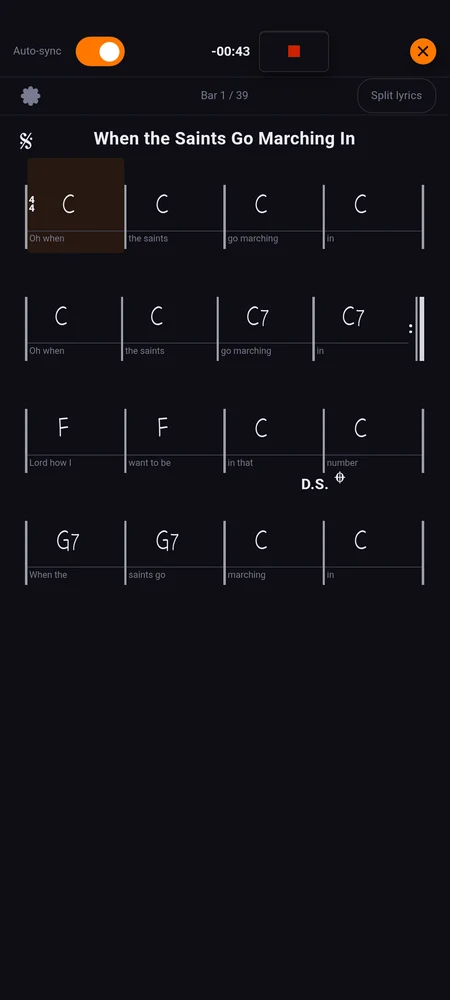
The chart opens with the song. The line you are playing is always the middle one, except at the very start and the very end, so the next line is already under your eyes.
The bar you are on is marked, but only just. A mark a second out would be wrong half the time, while a line change absorbs the same error without anyone noticing.
Auto-sync is on by default. Scroll with a finger and it steps aside, because scrolling means you are looking somewhere else on purpose. A banner brings it back.
“Split lyrics” puts the words beside the grid rather than under each bar. Under the bars they are cut by the bar lines, which is right while you place them and wrong while you sing them.
How many lines you see
This one is easy to hunt for in the wrong place: it is not in the chart’s own settings, because it does not describe the song. Two musicians sharing a set do not share a tablet or a pair of eyes, so it lives with the device.
Tap the gear, which sits in two places: the bottom row of the editor, on the left of undo and redo, and the top of the reading view while the track runs. Either opens “Device settings”, and the first block is “Chart on stage”:
- “Held upright” and “Held sideways”, counted separately, because a phone on its side fits fewer lines and needs them bigger;
- three is the minimum sideways, since the middle line needs one above and one below.
Nothing here travels with the song, the set, or the cloud backup. Change tablets and you set it again, once.
Sending it to the band
The PDF button makes a page you can send on. Pages break between lines, never through one.
If the chart carries lyrics, the grid prints the first pass only, and the words come after, on their own page, exactly as you typed them. On paper there is no track running to say which time through you are on, and three passes stacked under every bar would make the grid unreadable.
What to do next
- Preparing a pad for everything else a pad can carry.
- Lyrics for words that scroll, and for chord names written straight over them.
- PDF scores for the pages you already have.
- The library for how one song serves every set.