The whole app is built on one idea: given a set of strings and what they are tuned to, work the chords out. Change the strings or change the tuning and everything follows, because nothing was ever a fixed list.
Choosing an instrument
“Switch Instrument” on the home screen, or “Instruments” in the menu on a fretboard page.
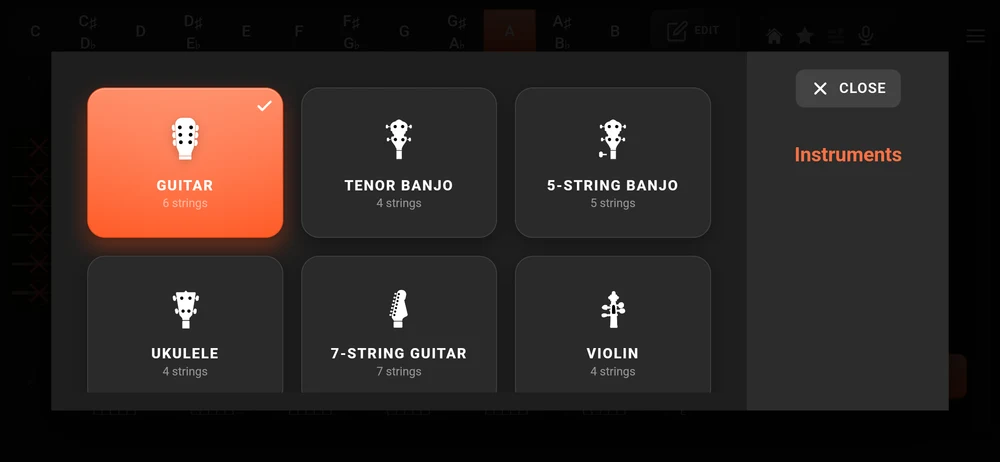
Ten instruments, each with its own string count, its own tuning, its own fret markers and its own reach:
| Instrument | Strings |
|---|---|
| Guitar | 6 |
| Tenor Banjo | 4 |
| 5-string Banjo | 5 |
| Ukulele | 4 |
| 7-string Guitar | 7 |
| Violin | 4 |
| Viola | 4 |
| Mandolin | 4 double courses |
| 5-string Mandolin | 5 |
| Balalaïka | 3 |
Guitar and Tenor Banjo are open in the free version. The other eight are part of the full version. Piano is not in this list because it has its own page.
The picker changes the instrument everywhere: the fretboard, the positions, the chord sizes the app will consider, and which set of bookmarks you see.
The 5-string Banjo has its short fifth string modelled properly: it starts at the fifth fret, and the app knows it. The Mandolin’s courses are doubled, with the lower two at the octave.
Open tunings
“Open Tuning” in the menu. This is where the app earns its keep on anything other than standard tuning.
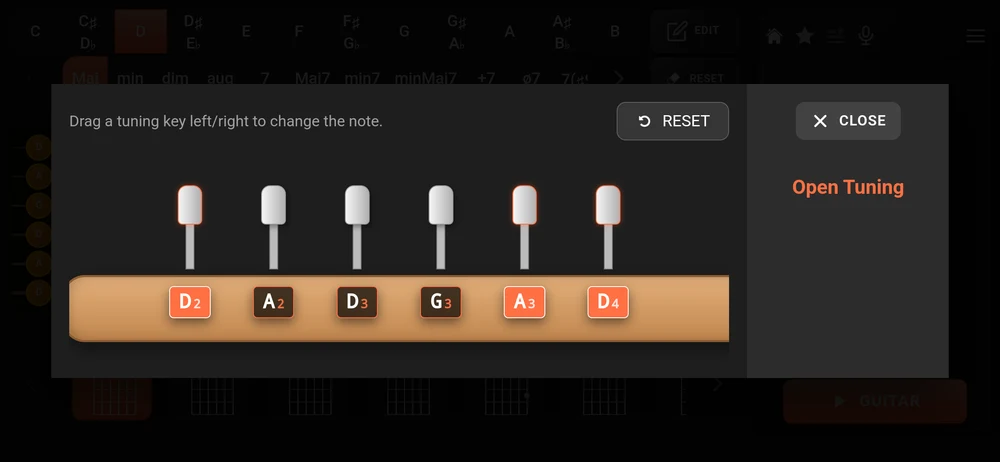
You get a headstock with one key per string. “Drag a tuning key left/right to change the note.” Drag, let go, and that string is retuned.
Nothing else about the app changes shape, and that is the point: every position it offers you from then on is worked out for the tuning you just invented.
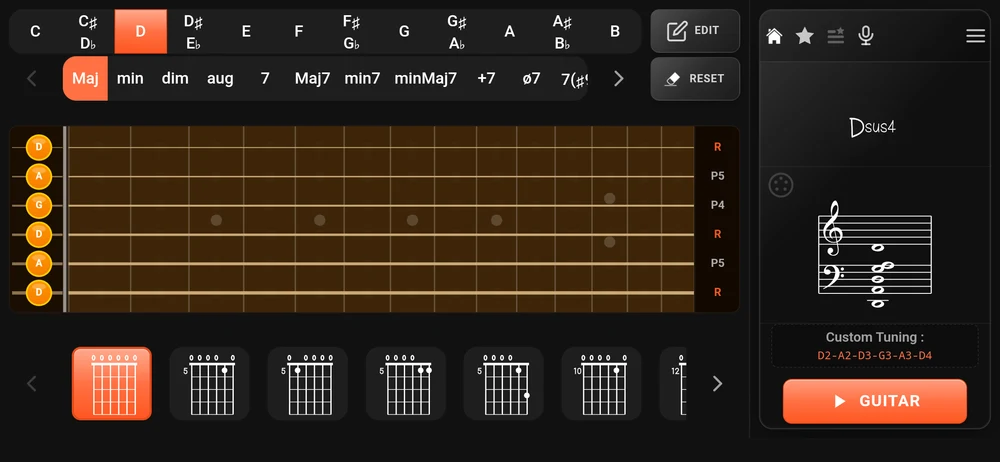
Once the tuning is not standard, the panel on the right prints it out under “Custom Tuning :” so you can see at a glance which tuning you are in. “RESET” inside the dialog puts the instrument back to standard, and the label disappears with it.
Bookmarks are kept per tuning, so a shape you saved in DADGAD will not clutter your standard tuning list. See Looking a chord up by name.
Left-handed
“Left-Handed” in the menu mirrors the fretboard: the nut moves to the right, the strings flip, and the degree column moves to the left.
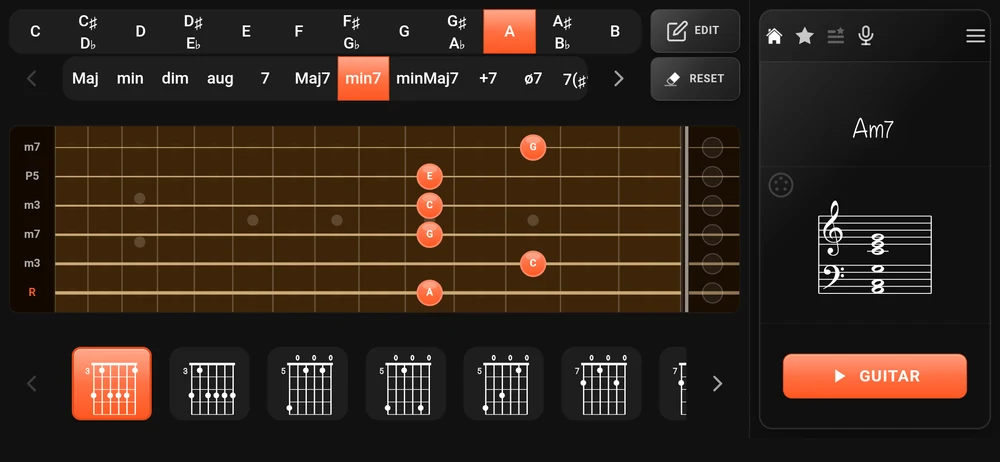
It is a display setting, not a different instrument. The chords, the tuning and the bookmarks are the same ones.
Fixed view
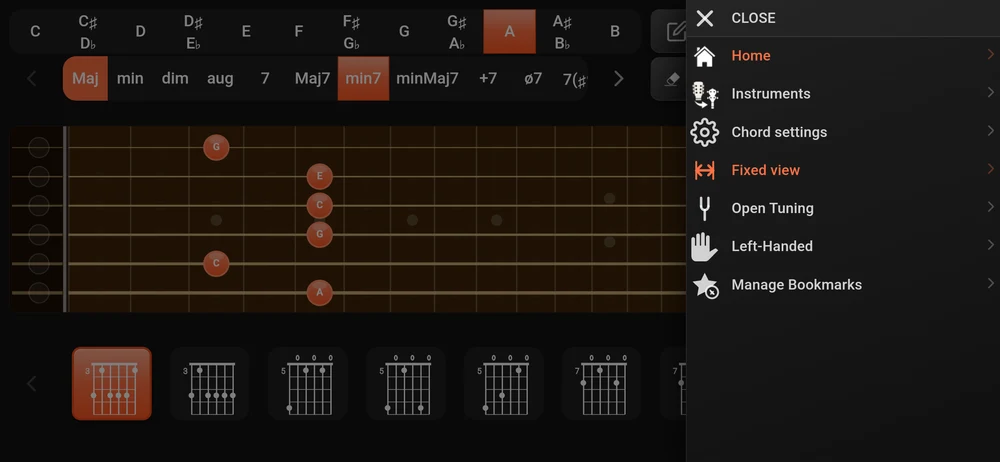
“Fixed view” is on when you install the app, and it does two things:
- it locks the instrument pages to landscape, turning your phone for you when you arrive;
- it fits the whole neck across the screen, so nothing scrolls.
Turn it off and the instrument pages follow your phone. Upright, you get a portrait layout; on its side, the neck goes back to a fixed fret width and scrolls sideways, which gives you bigger frets on a small phone at the cost of seeing the whole neck.
The home screen and the chord chart page ignore this setting entirely. They always follow the phone.
Combo: a keyboard and a fretboard at once
“Combo” on the home screen, in the full version.
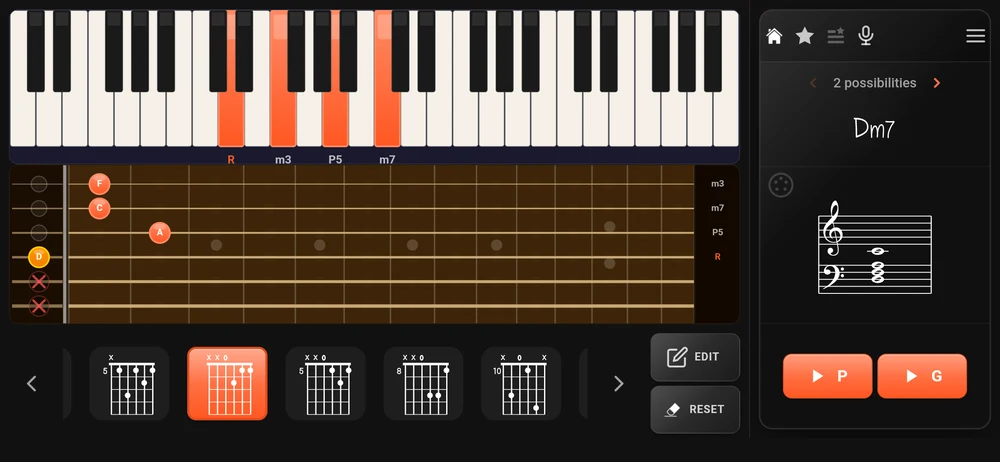
Both instruments are live and each one follows the other. Play a chord on the keys and the app finds the best playable position for it on the fretboard. Move a note on the fretboard and the keys follow.
There are two play buttons rather than one, P and G, so you can hear the same chord as a piano or as a guitar. The positions row at the bottom is the fretboard’s, so you can hunt through the guitar fingerings of a chord you worked out at the keyboard.
This is the page for two people in a room who do not share an instrument. A pianist plays what they mean; a guitarist reads a shape they can hold.
Combo has no root and quality rows along the top, because the two instruments take up the screen. To go the other way here, use “EDIT” and build the name in the chord builder; the chord lands on both instruments at once.
Where to go next
The microphone and MIDI: two more ways to get notes into the app without tapping.
The free version and the full one: which of the above is behind the purchase.