This is the half of the app most people install it for. You have a shape. You want a name for it.
Entering the notes
On a fretboard page, each string has three states and you cycle through them with your finger:
- tap a fret to put that note down. Tap the same fret again to lift it.
- tap the circle before the nut to sound the string open. Tap it again to mute it.
- a muted string shows a red cross, an open string shows the note name in an orange circle.
Only one note per string, which is how a guitar works. Tapping a second fret on the same string moves the note rather than adding one.
Every tap plays the note, so you can hear yourself building the chord. It also means the analysis runs on every tap: put four notes down and you have named four chords on the way.
Reading the answer
Everything the app has to say sits in the panel down the right.
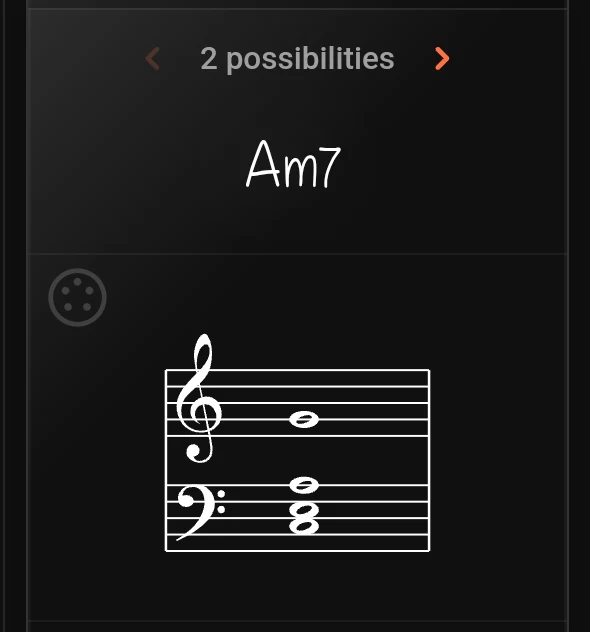
The name. Written the way a musician writes it, with the superscripts and the flat and sharp signs, not as plain text.
The reading count. A line such as “2 possibilities” with an arrow either side. Those four notes are honestly two chords, and which one you mean depends on the song. Tap the arrows to step through the readings; the name changes and so does the way the notes are spelled. Nothing else on screen moves, because you have not changed a note.
The staff. Treble and bass, so you can copy the chord onto paper, or check the octave the app thinks you are in.
The degree column
Down the right hand edge of the fretboard, one label for each string you are playing. A muted string gets nothing, which makes the column easy to read at a glance.
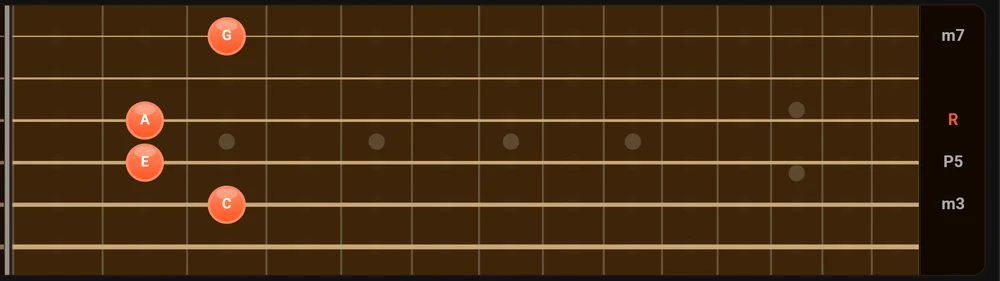
R is the root. The rest are intervals above it: m3 a minor third, P5 a perfect fifth, m7 a minor seventh, and so on. Read down the column and you can see what the shape is made of, which is the fastest way to understand why a chord is named what it is named.
It also tells you what you can drop. A shape with two P5 in it has a spare note.
Hearing it back
The orange button at the foot of the panel carries the name of the instrument you are on. It plays exactly the notes on screen, with a sampled instrument.
Worth doing before you write a name on a chart. If what you hear is not what you played, the app read a wrong string somewhere and the name is wrong too.
On the keyboard
The “Piano” page works the same way with keys instead of frets. Four octaves, C2 up to B5. Tap keys, read the name.
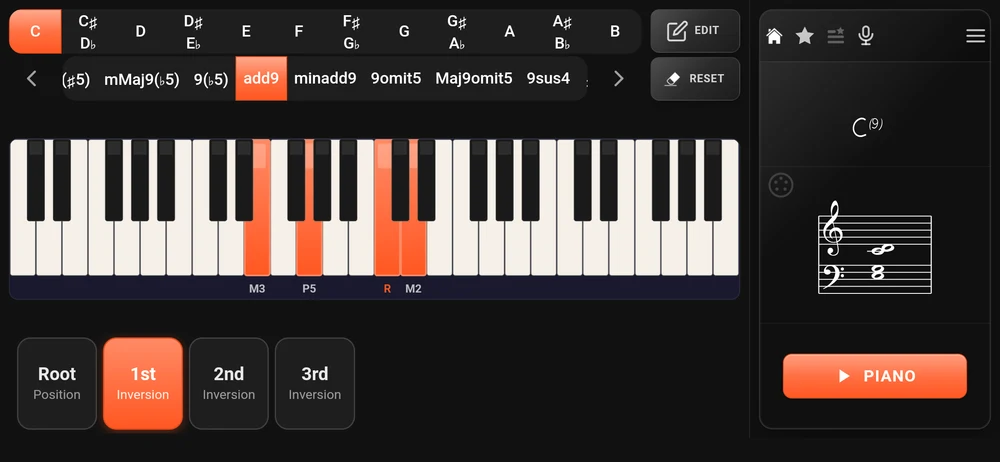
The row along the bottom names the voicing you have played: “Root Position”, “1st Inversion”, “2nd Inversion” and so on, with the one you are actually playing highlighted. Tap another and the app moves the notes for you.
The degrees appear under the keys rather than in a column, but they say the same thing.
Narrowing what the app considers
By default the app will consider chords of two notes up to seven. That is generous, and generous means a lot of readings.
“Chord settings” in the menu is where you cut it down.
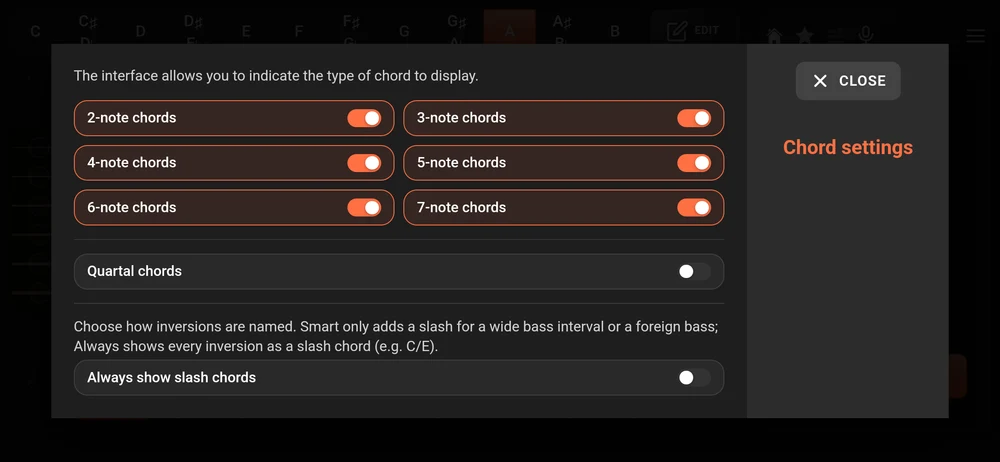
Turn off “2-note chords” and the app stops offering you fifths and thirds as answers. Turn off “6-note chords” and “7-note chords” and the names get a good deal shorter. The settings apply in both directions: they also cut the quality list at the top of the page, which is why turning things off is the fastest way to make that list manageable.
“Quartal chords” is off out of the box. Turn it on if you work in a language where stacked fourths are chords rather than accidents.
“Always show slash chords” decides how inversions are named. Left off, the app is smart about it: it only adds a slash when the bass is a long way below the rest or does not belong to the chord. Turned on, every inversion is written as a slash chord, so a C major with E at the bottom reads C/E.
The app will not offer you a chord your instrument cannot hold. A four string banjo gets five notes at most, so the six and seven note settings simply do nothing there.
Playing the chord instead of tapping it
Two ways to skip the tapping altogether, both in the full version: hold the chord on a real instrument and let the microphone name it, or play it on a MIDI keyboard. Both are in The microphone and MIDI.
Where to go next
Looking a chord up by name is the other direction.
Instruments and tunings if you play something other than a guitar, or not in standard tuning.