Someone hands you a chart with Am7 on it, or you want to know where else on the neck a chord you already know can live. This is that direction.
The two rows at the top
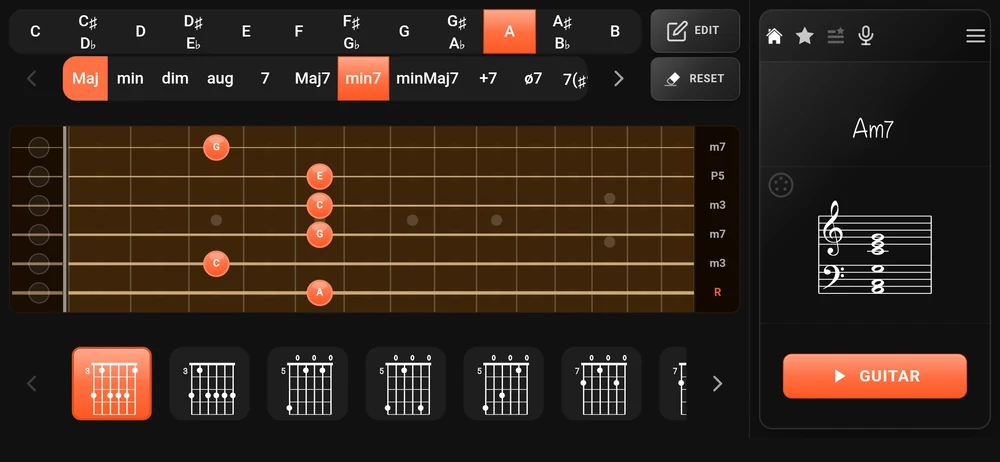
Every instrument page starts with two carousels.
The upper one is the twelve roots. The five that have two spellings show both, stacked: C♯ over D♭, D♯ over E♭, and so on. Tap the half you want, because the app keeps the spelling you chose and uses it in the name.
The lower one is the qualities, ordered with the ones you will actually want first: Maj, min, dim, aug, 7, Maj7, min7, minMaj7. It carries on well past that; swipe it or use the arrows either end.
Pick a root, pick a quality, and the app does the work.
The positions along the bottom
That row is the point of the app.
Each little diagram is a position the app worked out for your instrument, in the tuning it is currently in, with the number of fingers a hand actually has. The first one is selected for you and drawn on the neck. Tap any other and the neck redraws and you can hear it.
They come out ordered by how playable they are, and part of that score is how low on the neck they sit. In practice the first few are the shapes you already know and the ones further along are the ones worth learning.
These are calculated, not looked up. That is why a chord can have a dozen of them, why the list is different on a banjo, and why it still works after you have retuned.
If you tapped a shape in yourself rather than picking a name, none of them is highlighted: your shape is a real chord but it is not one of the positions the app would have chosen. That is normal, and it is often the interesting case.
When the two rows are not enough
The quality list is long but it is a list. For anything with a specific bass note, or a name assembled out of parts, use “EDIT” at the top right.
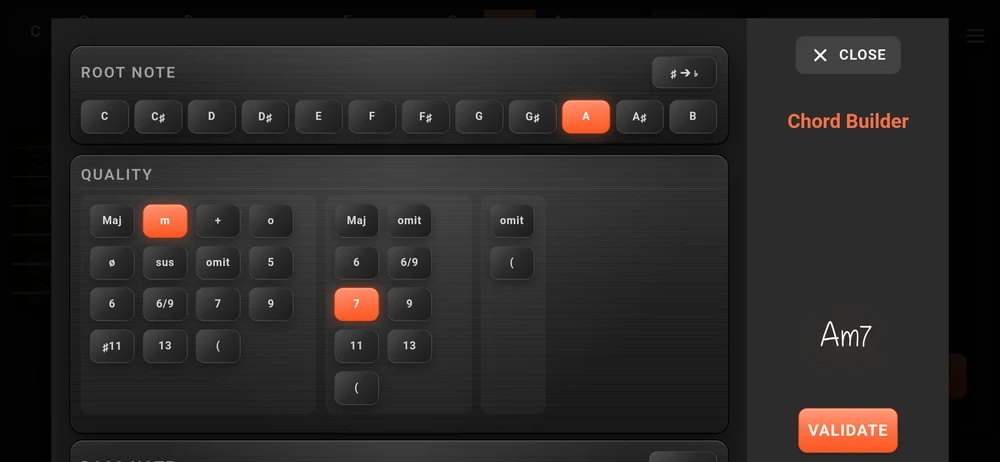
The builder works left to right. Pick the root, then build the quality one column at a time; each column only offers what can legally follow what you have already chosen, so you cannot assemble a name that does not exist. The name you are building is drawn as you go, down the right.
The button at the top right of the root row swaps the whole thing between sharps and flats, name and bass note together.
Below the quality sits “Bass Note”, which is how you get to a slash chord. The button beside it reads “None”; tap it, pick a bass note from the grid that appears, and the name gains its slash.
Tap “VALIDATE” and you land back on the neck with your chord on it.
Inversions on the keyboard
On the “Piano” page the row along the bottom is inversions rather than fingerings.
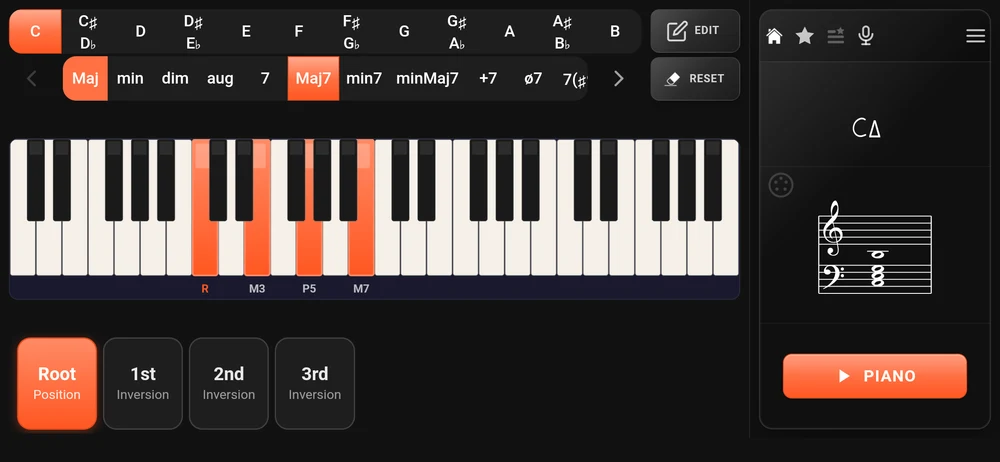
“Root Position” first, then “1st Inversion” and up. Tap one and the notes move on the keys. The degrees under the keys follow, so you can see which note the inversion has put at the bottom.
Keeping a position you like
You will find shapes you want back. The star in the icon row saves the position on screen.
Tap it once and it is bookmarked, under the chord’s own name; the app only asks you for a name when it could not name the shape. Tap it again to remove it. The icon beside the star opens the list.
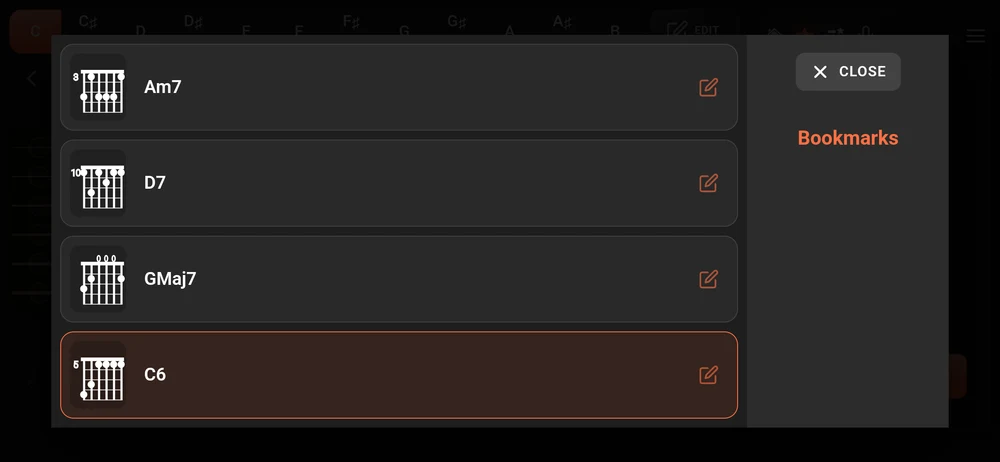
Tap an entry to put that position back on the neck. The pencil lets you rename it, delete it, or drag the list into the order you want.
Bookmarks belong to an instrument and a tuning. The ones you saved on a guitar in standard tuning are not the ones you see after you retune to DADGAD, and that is deliberate: a fingering means nothing away from the tuning it was found in.
“Manage Bookmarks” in the menu shows every instrument and tuning combination you have saved anything under, with a count. Tap one and the app switches to that instrument and that tuning. There is also a delete there, and it takes the whole group, so read it before you tap it.
Bookmarks are part of the full version. In the free version the star and the list carry a padlock.
Where to go next
Instruments and tunings: the same two rows on nine other instruments, and what happens when you retune.
Chord charts: once you have the chords, write the song down.